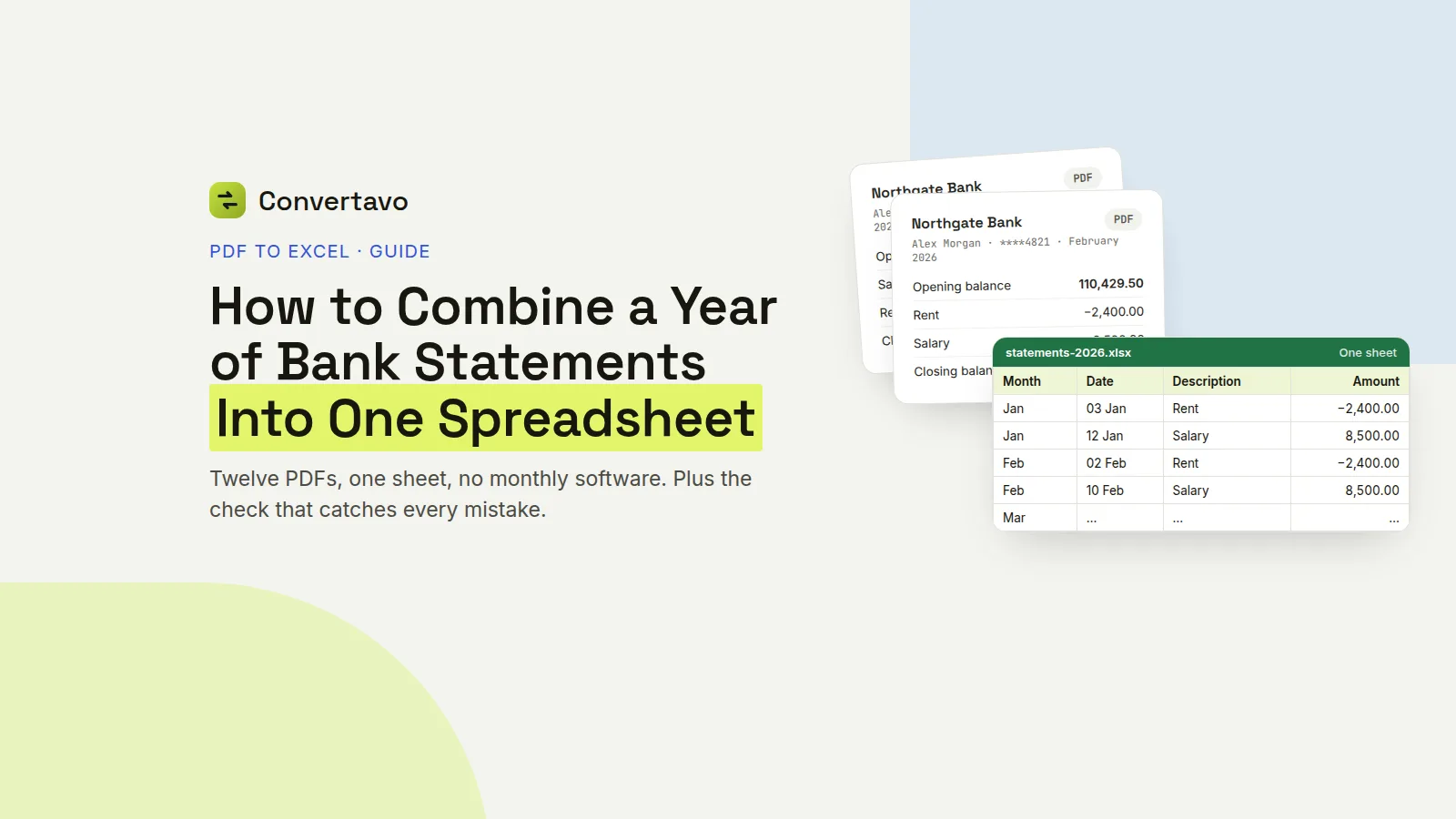
How to Combine a Year of Bank Statements Into One Spreadsheet
Twelve PDF statements, one spreadsheet, no monthly software. The free month by month method, plus the balance check that catches every mistake.
 Noman Mustafa Owner
- Published
- Reading time9 min
On this page 24 sections
Twelve PDFs in a folder. Your accountant wants you to combine the bank statements into one spreadsheet. Typing them out would take an evening you do not have.
You can do this free, one month at a time, in about half an hour. No subscription, no macro.
The steps are easy. The part that matters is the check at the end, which proves nothing went missing.
The free method, step by step
Seven steps to combine bank statements into one spreadsheet. Convert one month at a time, because one month per file gives a far cleaner result than a stack.
Download the statements as PDFs from your online banking. Not screenshots, not photos. A PDF made by the bank has real text in it, and that converts far better than a picture of a page.
Take the password off any that have one. Many banks send statements locked. Open them with Unlock PDF first, and keep the originals.
Convert the first month. Open PDF to Excel, upload the file, and choose Excel. Leave Header row on Detect automatically, and set the decimal separator to match your bank.
Check the highlighted cells, then download. Any cell the converter was unsure of is marked with a note. On a statement, those are usually in the amount column, which is exactly where you want to look.
Repeat for each month. Four conversions a day are free, so a full year takes three sittings. Name each file by month, like 01-january.xlsx, so they sort properly in your folder.
Stack them into one sheet. Open a new workbook, paste January's rows under the headings, then February under that, and so on. Add a Month column and fill it in as you go. That column is what lets you filter later.
Run the checks. The next section has them. Do not skip this part, because a quiet mistake in a statement is worse than no spreadsheet at all.
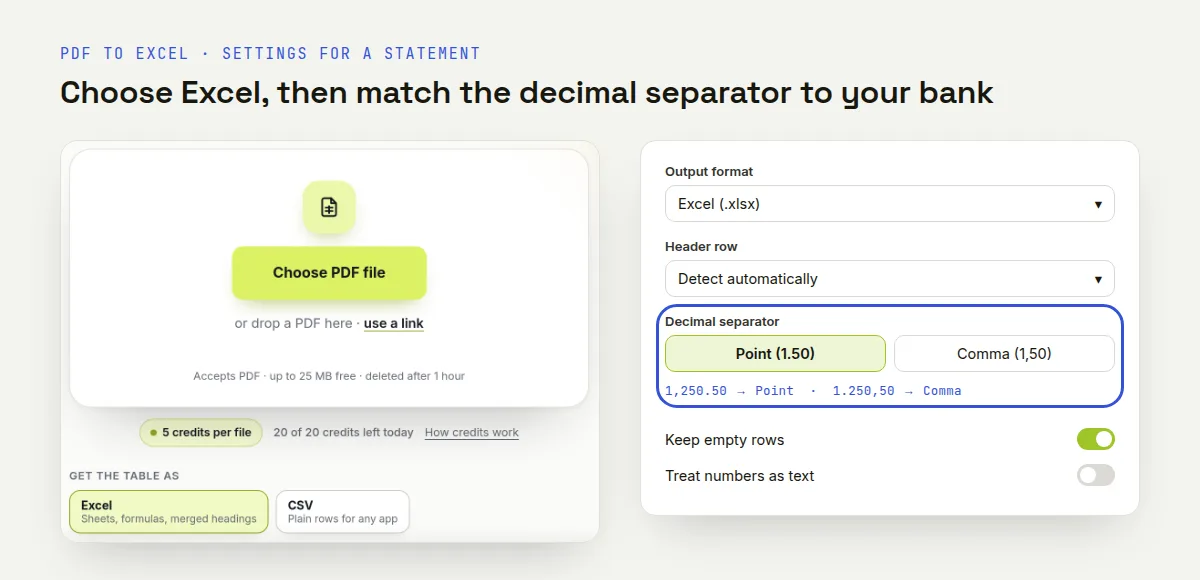
Choose Excel and set the decimal separator before you convert. Point for 1,250.50, Comma for 1.250,50.
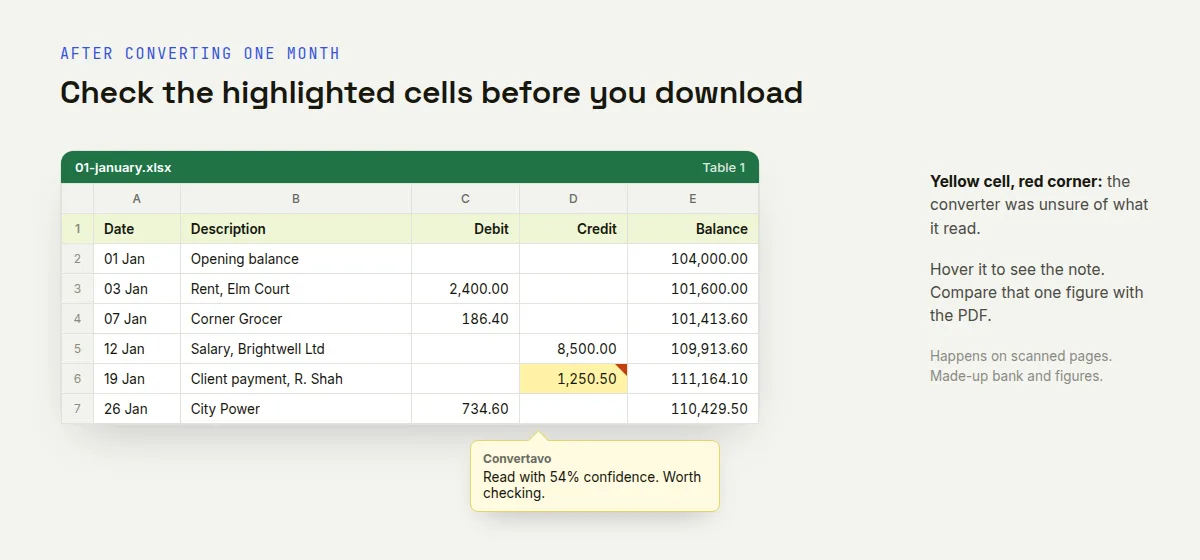
A highlighted cell carries a note with its score. Compare that figure with the PDF.
One tip that saves a lot of pain. Keep the headings identical in every month, and paste values only, so no odd formatting travels with the rows.
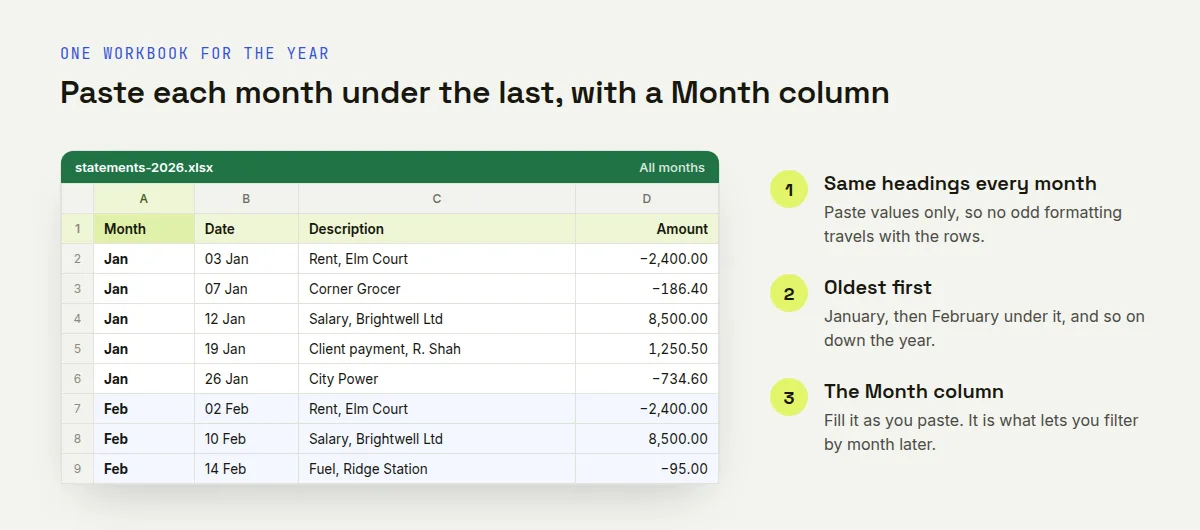
Months stacked oldest first, with a Month column so you can filter later.
Five ways to do this, and which one fits you
Try your bank first. Many let you download a CSV of transactions, and a file from the bank beats any conversion.
Method | Best for | What it costs | Time for 12 months |
|---|---|---|---|
Download CSV from online banking | Recent months, if your bank offers it | Free | Minutes |
Free converter, month by month | Old statements, closed accounts, any bank | Free | About half an hour |
Excel's own PDF import | Simple tables in digital PDFs | Free with Excel | Hit and miss on statements |
A paid batch service | Doing this every month for clients | Around $15 to $27 a month | Minutes |
Typing it out by hand | One short statement, nothing else | Free | Hours, and typos |
Two notes on that table.
Most banks only let you export recent activity, often a few months. Older history is where PDFs are all you have, and that is the gap this guide fills.
Excel's own import is worth one try, under Data, then Get Data, then From File, then From PDF. On statements it often splits a table that runs across pages, and it sees a scanned statement as a picture. If it works for your bank, use it.
Settings for the job you are doing
The steps stay the same. What changes is what you keep and what you check hardest.
Statements for a tax return
Keep every row, including the boring ones. Add a Category column yourself and fill it in once the year is stacked, because sorting by description makes that fast. Keep the original PDFs too, since those are what a tax office accepts as proof.
This guide is about getting your figures into a spreadsheet. It is not tax or financial advice.
Statements for a loan application
Lenders look at the balance over time, so the balance column matters more than the descriptions. Check the running balance carefully, and never edit a figure to tidy it up. If a number is wrong, convert that month again rather than typing over it.
Catching up on bookkeeping
Convert oldest first, and stop at the end of each month to check that month's totals. Finding a problem in March is easy. Finding it after you have pasted twelve months is not.
A statement with two accounts on one PDF
Some banks print current and savings on the same statement. Each table comes back on its own sheet, so keep them separate and add an Account column before you stack anything.
A scanned or posted statement
Paper statements are pictures, so the text is read with OCR during the conversion. Expect more mistakes, especially where a 5 and an S look alike, and check every amount against the paper.
A very long statement
If only part of it matters, set the page range to those pages. Or cut the file first with Split PDF, which also makes the result easier to check.
Is it free, and is it safe for bank statements?
Yes it is free, and the files are deleted an hour after processing. Here are the real numbers.
Is it free?
You get 20 credits a day with no account, and each file uses 5. That is four conversions a day at no cost, so a year of statements takes three sittings. No email address, no card, and no watermark.
Files can be up to 25 MB signed out, or 100 MB with a free account. Nothing in this guide needs a paid plan.
Is it safe to upload a bank statement?
The file travels over HTTPS and is deleted from the servers one hour after processing. Nothing is stored, read by a person, or reused.
I would still say this plainly, because it is your money. Check the deletion policy on any site before you upload a statement, and do not use a tool that cannot tell you what happens to the file. The honest version is that uploading always involves some trust.
What should I keep afterwards?
Keep the original PDFs. A spreadsheet is a copy you made, and a tax office or a lender will want the bank's own document if anything is questioned.
Do I need Excel?
No. The .xlsx opens in Google Sheets and LibreOffice, both free. Choose CSV instead if the file is going into accounting software.
Five checks that prove nothing went missing
This is the part the vendor guides skip, and it is the only part that really matters. Five checks, about ten minutes for a year.
1. The balance check
This one check finds almost every mistake. Each statement's closing balance should equal the next month's opening balance.
So January closes at 110,429.50, and February opens at 110,429.50. Walk down the year that way. If a month does not link up, the problem is in that month, and you only have to look there.
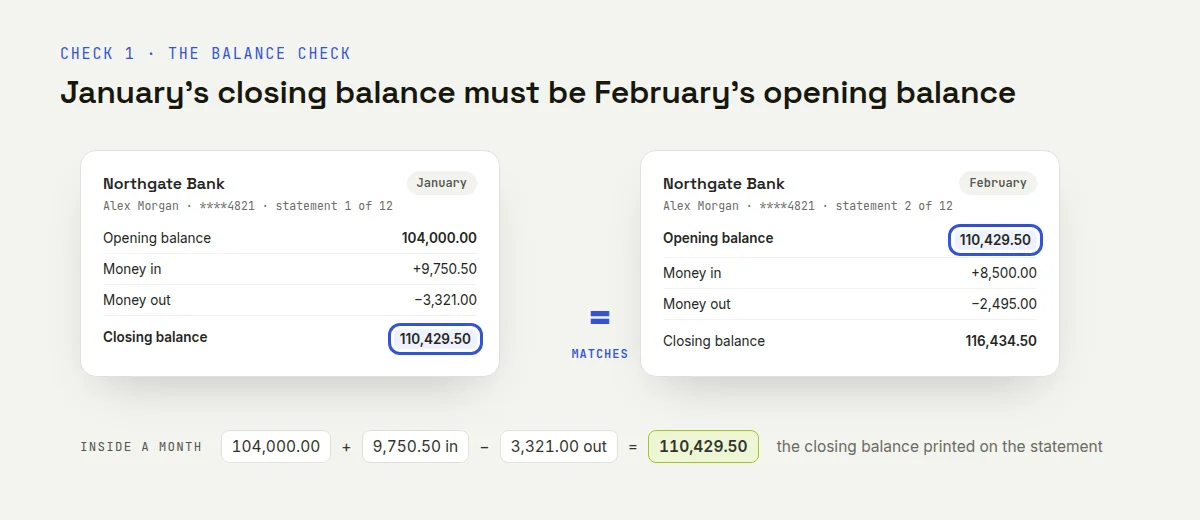
Closing balance in, opening balance out. If they match, nothing went missing between the months.
Inside a single month the same idea works. Opening balance, plus the credits, minus the debits, should give you the closing balance printed on the statement.
2. Count the rows
Some statements print the number of transactions. If yours does, compare it with your row count for that month.
If it does not, count the lines on one busy page by hand and compare. Rows go missing at page breaks more often than anywhere else, because that is where a table is joined back together.
3. Sort by amount, twice
Sort the amount column largest to smallest, then smallest to largest. Look at the top five and the bottom five.
A misread decimal point stands out instantly here. A 1,250.50 read as 125050 is invisible in a list and obvious at the top of a sort.
4. Check the dates at the year boundary
Many statements print 03 Jan with no year on it. A December to January statement is where that quietly becomes the wrong year.
Sort by date and look at the join between December and January. Fix the year in that block before you do anything else with the sheet.
5. Make sure the numbers are numbers
Select your amount column and look at the sum in the corner of the window. If there is no total, the figures came in as text.
Excel marks those cells with a small green corner. The usual cause is the decimal separator not matching the statement, so convert that month again with the other setting. Point for 1,250.50, comma for 1.250,50.
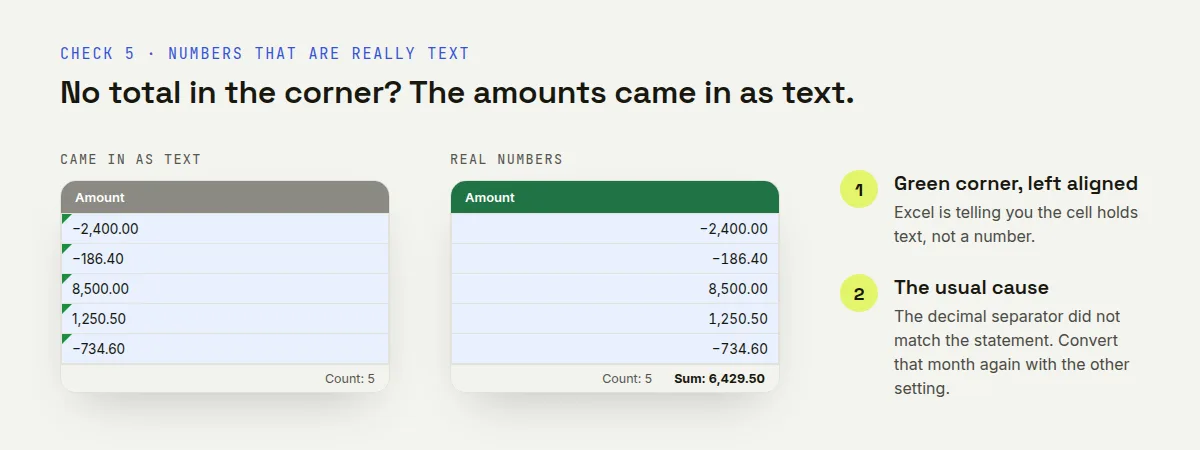
Text shows a count and no sum. Real numbers show a sum.
One thing not to do
Do not fix a wrong number by typing over it. Convert that month again instead.
A statement is a record. The moment you start retyping figures by hand, the spreadsheet stops matching the bank, and nobody can tell which one is right.
Why did my spreadsheet come out wrong?
Ten common cases. Most are one setting, and the rest are the PDF itself.
What you are seeing | Why it happens | What to do |
|---|---|---|
Amounts will not add up | The decimal separator does not match the bank | Switch Point and Comma, then convert again |
Every cell is text | Treat numbers as text is switched on | Turn it off and convert again |
An account number lost its zeros | It was read as a figure | Turn Treat numbers as text on for that file |
Column names appear as a data row | The header row was missed | Change the Header row setting |
Debits landed in the credit column | A blank cell shifted the row | Check that month against the PDF, then convert again |
Extra rows from other pages | The page range covers the whole file | Type only the pages with the table |
Rows missing at a page break | A table split across pages was joined badly | Check the join, and convert those pages on their own |
Some cells are highlighted | The converter was unsure, usually on a scan | Check those first. Each has a note with its score |
A scanned statement read badly | Paper scans have no real text in them | Use a clearer scan, and check every amount |
The PDF will not open | It is password protected | Open it with Unlock PDF first |
If two apply at once, fix the decimal separator first. That one setting explains more complaints than everything else together.
Other free tools that help
Unlock PDF takes the password off a statement you own, so you stop typing it every month.
Split PDF keeps only the pages with your table, which makes the result easier to check.
Merge PDF joins the originals into one file to hand to an accountant alongside the spreadsheet.
Start with January tonight
Check your online banking for a CSV export first, because nothing beats a file from the bank. If only PDFs exist, put January through the free PDF to Excel converter. Then combine each bank statement into one spreadsheet with a Month column, and run the balance check down the year. Keep the original PDFs where they are.
Frequently asked questions
How do I combine several bank statements into one spreadsheet?
Convert each month separately, then paste the rows into one sheet, oldest first, with a Month column beside them. Converting one month at a time gives a much cleaner result than a stack.
Can I convert a bank statement PDF to Excel for free?
Yes. Four conversions a day are free with no account, so a year takes three sittings. There is no watermark and no email address to give.
How do I know the spreadsheet is correct?
Use the balance check. Each month's closing balance should match the next month's opening balance. Then sort by amount to catch a misread decimal point.
Why will my amounts not add up in Excel?
They came in as text, usually because the decimal separator did not match the bank. Convert that month again with the other setting, Point or Comma.
Is it safe to upload a bank statement?
The file is deleted from the servers an hour after processing, and nobody reads it. Check that policy on any site before uploading, since a statement is not an ordinary document.
Should I use a paid statement converter instead?
Only if you do this every month for several clients. For one tax return or one loan application, the free month by month method costs nothing and takes an evening.
Try it on your own file
Free, no signup, and your file is deleted an hour later.
Noman Mustafa — Founder of Convertavo I build the file tools on this site. Fifteen years of writing software, and most of my days now go into making PDF, image and OCR processing fast enough to run in a browser tab. I write here about what I learn breaking files apart.