How to Edit a PDF Without Adobe Acrobat
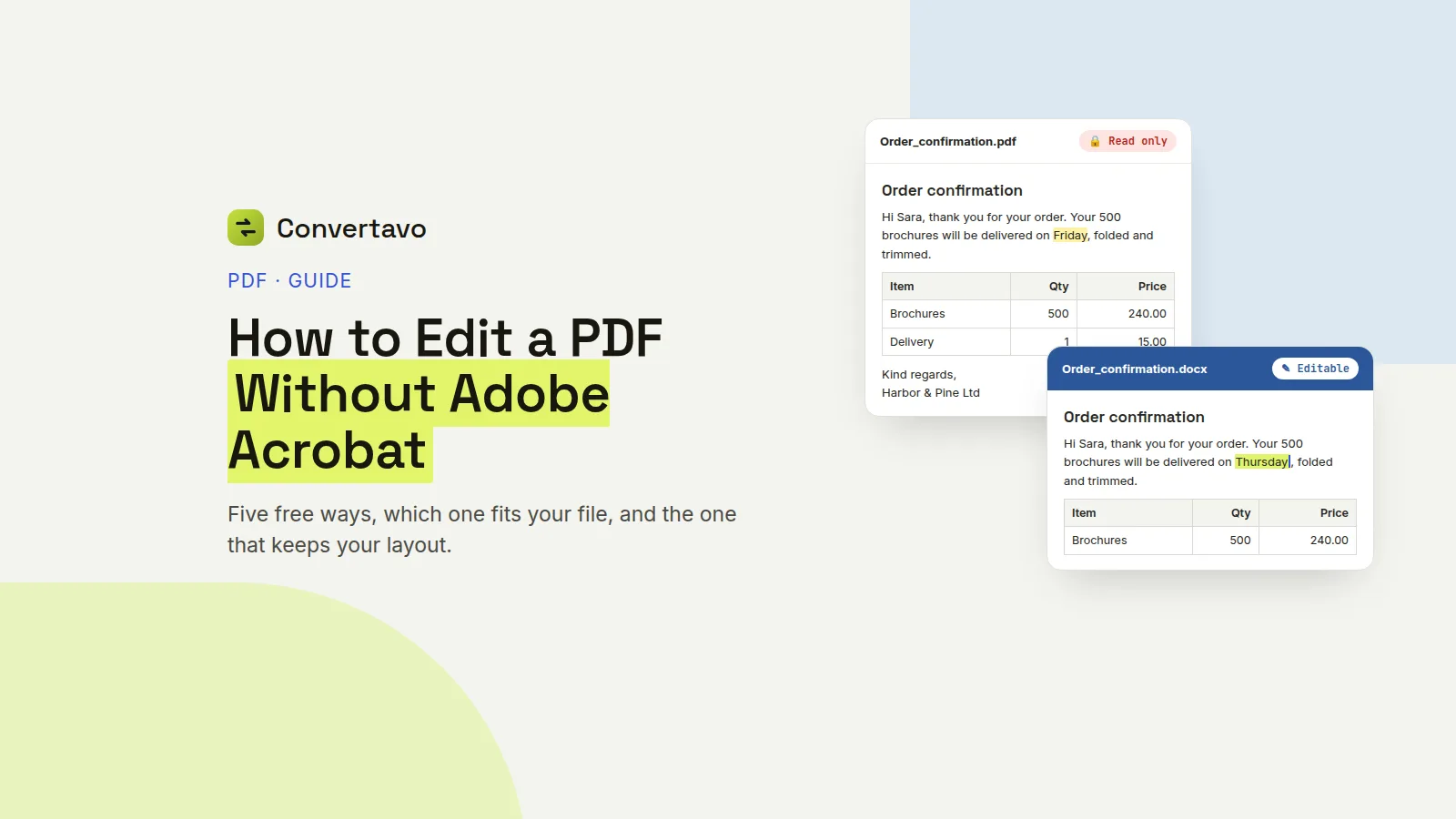
Need to change a PDF but have no Acrobat? Five free ways, which one fits your file, and the one that keeps your layout intact.
 Noman Mustafa Owner
- Published
- Reading time9 min
On this page 24 sections
You need to edit one line in a PDF without Adobe Acrobat, which costs money you were not planning to spend.
You don't need it. There are five free ways, and the right one depends on how much you are changing.
A typo takes thirty seconds. A full rewrite means turning the PDF into a Word file first. Here is how to tell which job you have.
The method that works for real edits
Turn the PDF into a Word file, change it there, then save it back as a PDF. Six steps, about a minute of work.
Upload the PDF. Open PDF to Word, click Choose PDF file, or paste a link if the file sits in an email or on a website. Up to 25 MB free, or 100 MB with a free account.
Pick the layout mode. Same layout, editable keeps the fonts, tables and pictures where they were, and still lets you change every word. Choose Flowing text instead if you plan to rewrite whole paragraphs.
Set the page range if you only need part of it. Type 1-5, or 8, in the Page range box. Converting forty pages to fix one is a waste of time.
Add the password or the language if needed. A protected PDF opens with the password typed into the Document password box. A scanned file needs its language set, since OCR reads the letters better when it knows the alphabet.
Click Convert to Word. Most files finish in 8 to 20 seconds, and the result opens on the page so you can scroll through it before downloading.
Edit, then save back to PDF. Open the .docx in Word, Google Docs, Pages or LibreOffice, make your changes, then use Save as PDF or Export.
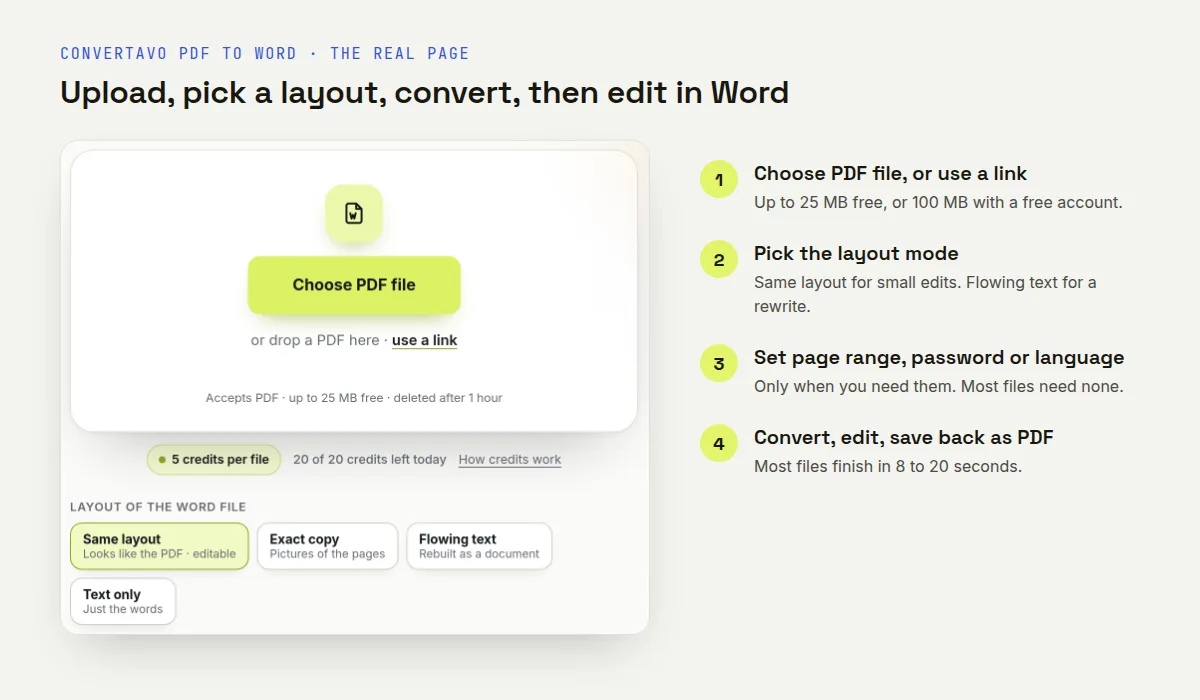
The upload box and the four layout modes on the PDF to Word page.
If the result is not quite right, convert the same file again with a different layout mode. It costs nothing extra, and switching modes fixes most complaints.
Five free ways, and which one to pick
Every way to edit a PDF without Adobe Acrobat fits in this table. Match the method to the size of the change. Doing a small job the big way is how layouts get broken.
Method | Best for | Does the layout survive? | What it costs |
|---|---|---|---|
Convert to Word, edit, save back | Changing words, numbers or whole paragraphs | Mostly, depending on the mode you pick | Free |
Open the PDF in Word itself | A quick fix when you already have Word | Often shifts on busy pages | Free with Word |
Open it in Google Docs | A quick edit on any device, no software | Poor on anything with columns | Free |
Write on top of the PDF | Signing, highlighting, filling in a form | Perfect, nothing underneath is touched | Free |
An online PDF editor | Adding a text box, an image or a stamp | Good, it sits on top of the page | Free tier |
Quick rule. If you are changing what the document says, convert it. If you are adding something to it, write on top instead.
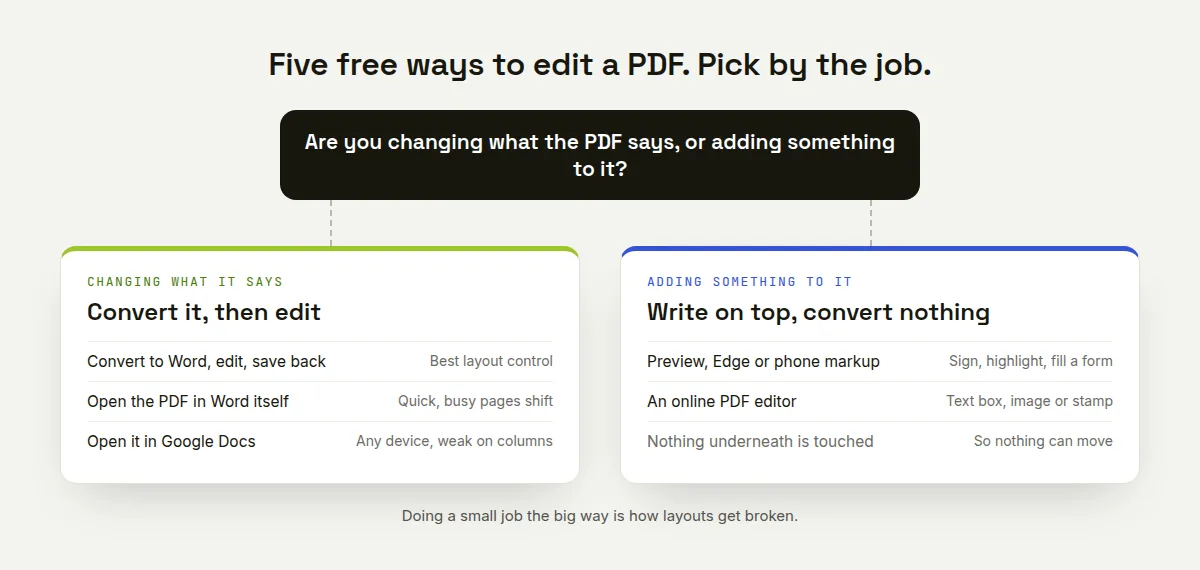
One question picks the method: are you changing the words, or adding to the page?
That last row is the one people miss. Preview on a Mac, Microsoft Edge on Windows, and the markup tools on your phone all let you type and sign on a PDF for free. Nothing is converted, so nothing can move.
Which settings for the file you have
The steps stay the same. Only the layout mode changes.
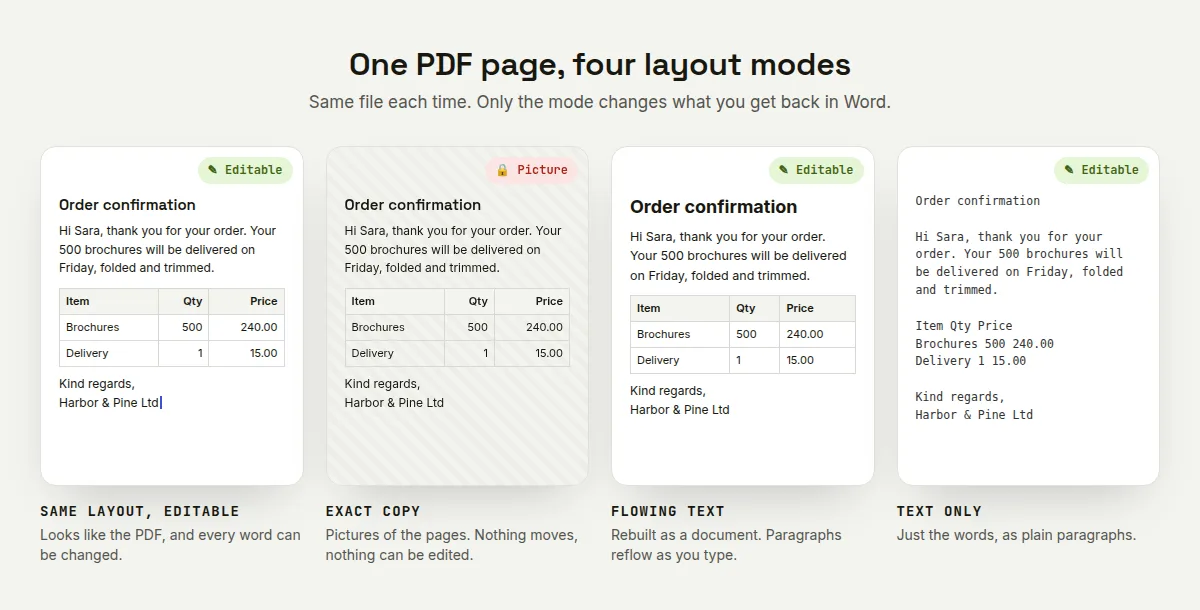
One page, four layout modes. Pick the one that matches the job.
A CV or resume with one typo
Use Same layout, editable. The design holds together and you fix the word. If you still have the original Word file somewhere, use that instead, because nothing beats the file the PDF was made from.
A report you want to rewrite
Pick Flowing text. Headings, lists, tables and pictures come back as real Word objects, so paragraphs reflow properly as you type. Expect to tidy a busy layout a little.
A scanned contract or letter
There is no text in a scan, only a picture of one. Choose Flowing text so the pages are read with OCR during the conversion, and set the language first if it is not English. Then check every name, date and amount by eye.
A PDF with tables of figures
If you want to add up the numbers, Word is the wrong destination. Send it to PDF to Excel instead, where rows and columns stay rows and columns.
A form you need to fill in
Do not convert it. Open it in your browser or in Preview and type into the fields, or add text boxes on top. Converting a form usually scatters the little boxes everywhere.
A password protected PDF
Type the password into the Document password box before converting. If you own the file and want the password gone for good, use Unlock PDF.
A 200 page document
Convert only what you need with the page range, or cut the file first with Split PDF. Big conversions are slower and harder to check.
Is it free, and is my document safe?
Yes to both. Here are the real numbers rather than a promise.
Is it free?
You get 20 credits a day with no account, and each file uses 5. That is four conversions a day at no cost. No email address, no card, and no watermark on the Word file.
Files can be up to 25 MB signed out, or 100 MB with a free account. Paid plans add priority processing, and they do not unlock any feature used in this guide.
Can I convert the same file twice?
Yes, and you should. Trying another layout mode costs you nothing extra, and it is the fastest fix when the first result looks odd.
What happens to my file?
It travels over HTTPS and is deleted from the servers one hour after processing. Nothing is stored, read or reused.
This matters on this tool more than most. People convert contracts, bank letters and medical reports. If you would not email the file to a stranger, check the deletion policy on any site first.
Do I need Microsoft Word?
No. The .docx opens in Google Docs, Apple Pages and LibreOffice, all of which are free. Choose OpenDocument or Rich text under Output if your program prefers those.
Why a PDF never converts perfectly
A PDF does not know what a paragraph is. It places each letter at a fixed spot on the page, like stickers on paper.
Word works the other way round. It needs paragraphs, headings and tables so the text can move when you type. So every converter has to guess which letters belong together, and that guess is where the trouble starts.
Here is what makes the guess harder, in order.
Fonts you do not have
If the PDF uses a font that is not on your computer, Word swaps in a similar one. The new font's letters are a slightly different width, so lines rewrap and a page that fitted now runs onto two.
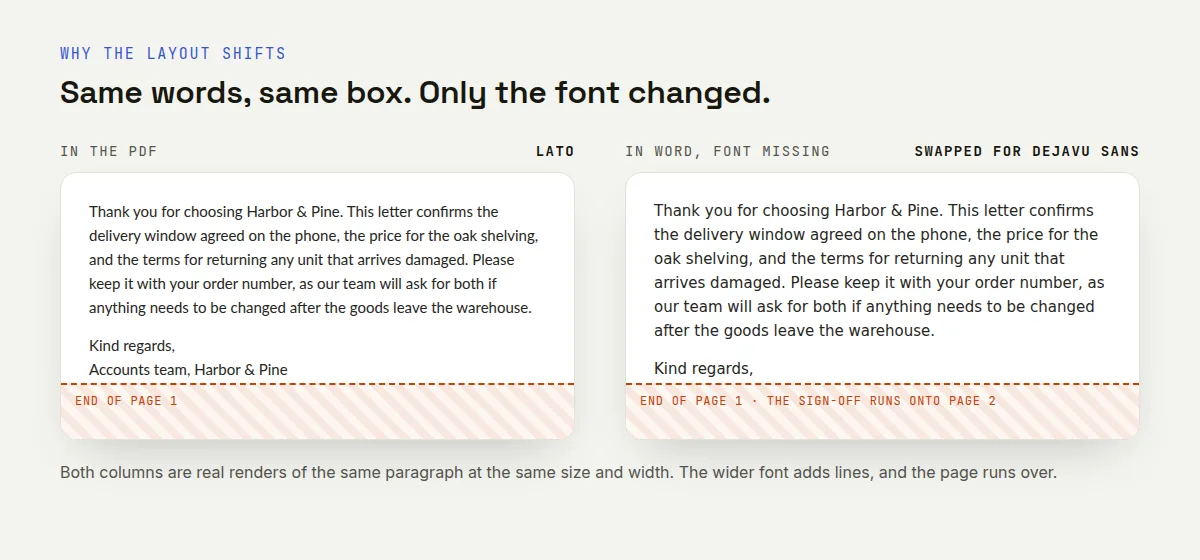
Same words, same box. The swapped font is wider, so the sign-off runs onto page 2.
This is the single most common reason a converted file looks almost right but not quite.
Columns and text boxes
A letter or a report is one column of text, and those convert cleanly. A magazine page with three columns, or a form covered in little boxes, is a different job.
On pages like that you cannot have both a perfect look and fully editable text. That is why the layout modes exist, and why Exact copy gives you pictures of the pages, which cannot shift and cannot be edited either.
Scanned pages have no text at all
A scan is a photo. There are no letters in it, so OCR has to read them, and OCR makes mistakes. A 5 becomes an S, a 0 becomes an O.
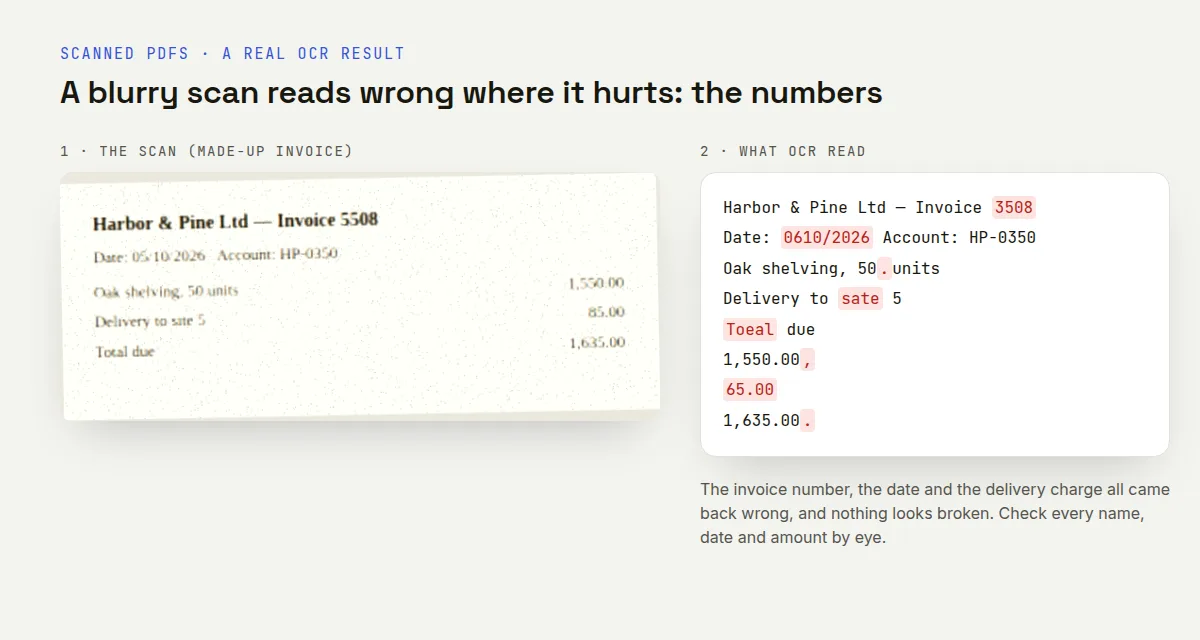
A real OCR result from a poor scan. The mistakes sit in the numbers.
Clean scans at 300 DPI give the best results. Blurry or crooked pages give more errors, and the errors hide in numbers where you least want them.
Tables without lines
A table with borders is easy, because the lines say where the cells are. A table held together by spacing alone has to be worked out from where the text lines up, and columns sometimes merge.
When you should not edit a PDF at all
This is the part the vendor guides skip. Some PDFs are records, not drafts.
A signed contract, a stamped certificate, a bank statement or an invoice someone already has a copy of should not be converted and re-saved. The digital signature is lost, the file dates change, and the other side may well compare their copy with yours.
If something is wrong in a document like that, ask the sender for a corrected one. Keep the original PDF either way, because a converted file is never a replacement for it.
Why does my Word file look wrong?
Ten common cases. Most are one setting, and the rest are the file itself.
What you are seeing | Why it happens | What to do |
|---|---|---|
The layout shifted a little | Word swapped in a different font | Use Same layout, editable, or install the missing font |
Lines break in odd places | The converter guessed where paragraphs end | Convert again with Flowing text |
You cannot click into the text | The mode was Exact copy, which makes pictures of the pages | Convert again with Same layout or Flowing text |
The page is empty in Word | The PDF is a scan with no text in it | Convert with Flowing text so OCR reads the pages |
Numbers are wrong after a scan | OCR misread digits, like 5 and S | Set the language, use a 300 DPI scan, and check by eye |
Columns merged into one | The columns had no lines to follow | Use Same layout, editable, then tidy in Word |
A table turned into loose text | The table had no borders | Send it to PDF to Excel instead |
The file would not upload | Over 25 MB without an account, or not a PDF | Sign up free for 100 MB, or check the file type |
It asked for a password | The PDF is protected | Type it in the Document password box before converting |
Urdu or Arabic came out wrong | The language was left on Auto-detect | Set the language before you convert |
If two of these apply, change the layout mode first. That one setting fixes more than everything else put together.
Other free tools that help
PDF OCR makes a scan searchable while keeping it looking exactly as it does now.
Unlock PDF removes a password from a file you own, so you stop typing it every time.
Split PDF cuts out the few pages you actually need before you convert anything.
Fix your file in the next five minutes
To edit a PDF without Adobe Acrobat, decide first: are you changing what the document says, or adding something on top of it? Adding means writing on the PDF directly, and changing means converting. For that, put it through the free PDF to Word converter, pick Same layout for small edits or Flowing text for a rewrite, and keep the original PDF where it is.
Frequently asked questions
Can I edit a PDF for free without Adobe Acrobat?
Yes. Convert it to a Word file and edit there, or write on top of the PDF in your browser or in Preview. Both are free and need no account.
How do I make a PDF editable?
Convert it to Word with Flowing text, which rebuilds headings, paragraphs, lists and tables as things you can type into. Then save it back as a PDF when you are done.
Can I edit a scanned PDF?
Yes, but the pages have to be read first, because a scan is only a picture. Choose Flowing text so OCR runs during the conversion, set the language, then check the numbers.
Will the formatting change?
Usually a little. A missing font or a multi column page is what moves things. Same layout, editable holds it together best while still letting you type.
Do I need Microsoft Word to open the file?
No. Google Docs, Apple Pages and LibreOffice all open a .docx for free. You can also pick OpenDocument or Rich text before converting.
Is it safe to convert a contract or a bank letter?
The file is deleted from the servers an hour after processing and nobody reads it. Still, do not re-save a signed or stamped document, because converting it strips the signature.
Try it on your own file
Free, no signup, and your file is deleted an hour later.
Noman Mustafa — Founder of Convertavo I build the file tools on this site. Fifteen years of writing software, and most of my days now go into making PDF, image and OCR processing fast enough to run in a browser tab. I write here about what I learn breaking files apart.