How to Send a Video on WhatsApp Without Losing Quality
Why WhatsApp makes your videos blurry, its real size limits, and three ways to send a video without losing quality: tap HD, send it as a document, or compress it yourself first.
 Noman Mustafa Owner
- Published
- Updated
- Reviewed byMuhammad Ijaz
- Reading time10 min
On this page 25 sections
You send a clear video. It arrives blurry, and the person on the other end asks what happened.
WhatsApp did it. Anything you send as a photo or video gets re-encoded on the way, and the app decides how much to throw away. This guide shows how to send a video on WhatsApp without losing quality, in the order we would try each fix.
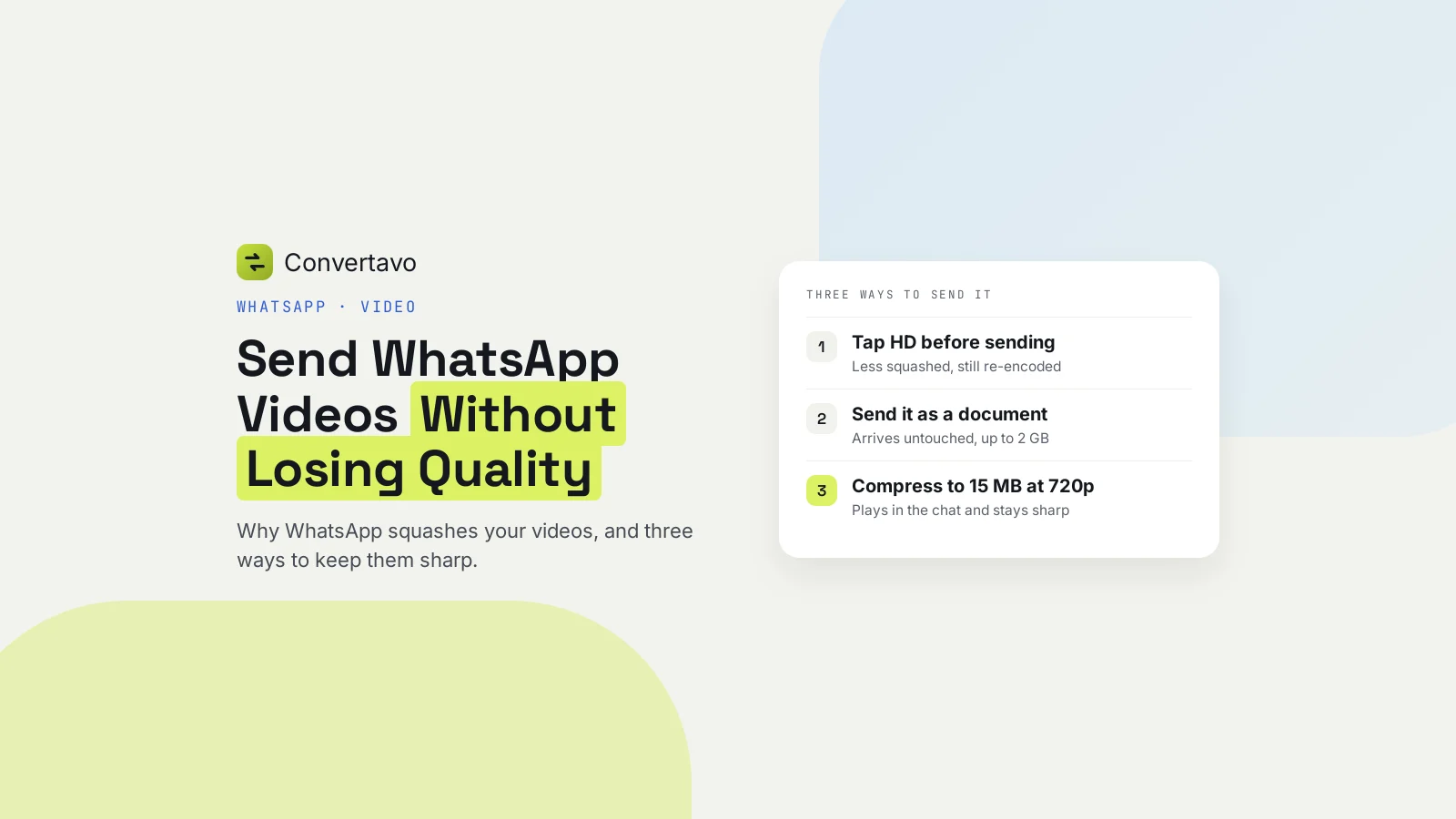
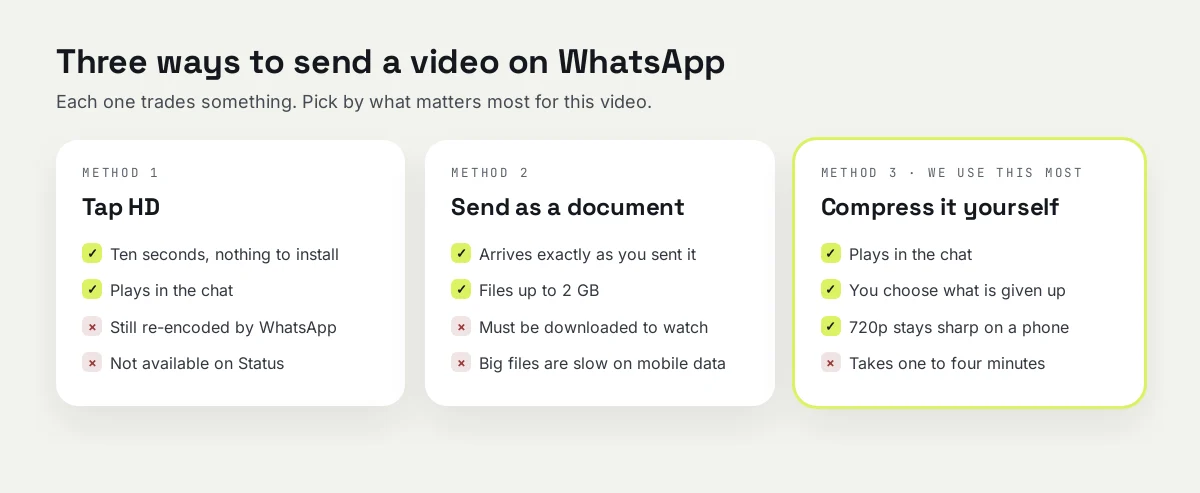
Three ways to keep your video sharp
Start with the first one. It takes ten seconds, costs nothing, and already lifts your WhatsApp video quality.
Method 1: tap HD before you send
- Open the chat and attach the video. The preview screen opens before it sends.
- Tap the HD button at the top of the preview. Choose HD quality instead of Standard quality.
- Send it. The video is still re-encoded, just less harshly.
This helps WhatsApp video quality, and it is not a full fix. HD is not available for Status updates or profile pictures, only in chats. To use it every time, open Settings > Storage and data > Media upload quality and choose HD quality.
Method 2: send it as a document
- Tap the attach icon, then Document. Not Gallery, not Photos.
- Find the video file. On an iPhone it may be in Files or in your Photos. On Android, pick it from your file manager.
- Send it. WhatsApp does not re-encode a document, so the video arrives in full quality, exactly as it left you.
A document can be up to 2 GB. The trade is that it does not play inside the chat. Your friend has to download it first, which takes a while for a big file on mobile data.
Method 3: shrink it yourself, then send it as a video
This is the one we use most, because the video still plays in the chat and it still looks good.
- Open the free video compressor and add your MP4, MOV, MKV or AVI.
- Type a size into Target size (MB). For a clip of a minute or two, 15 to 25 MB sends and downloads quickly. Anything under 64 MB is inside WhatsApp's limit on any connection.
- Set Resolution to 720p. On a phone screen 720p looks sharp, and it saves more than any other setting.
- Press Compress video and download the MP4. Most videos take one to four minutes.
- Send the new file through WhatsApp as normal.
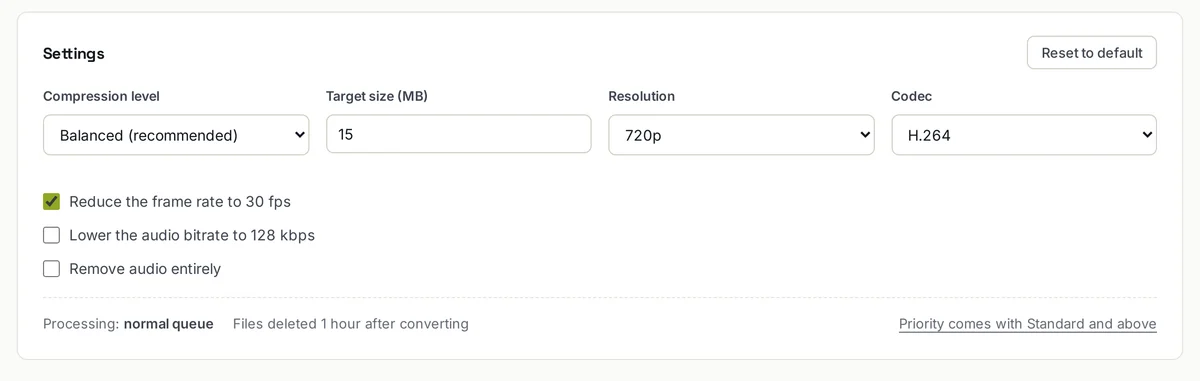
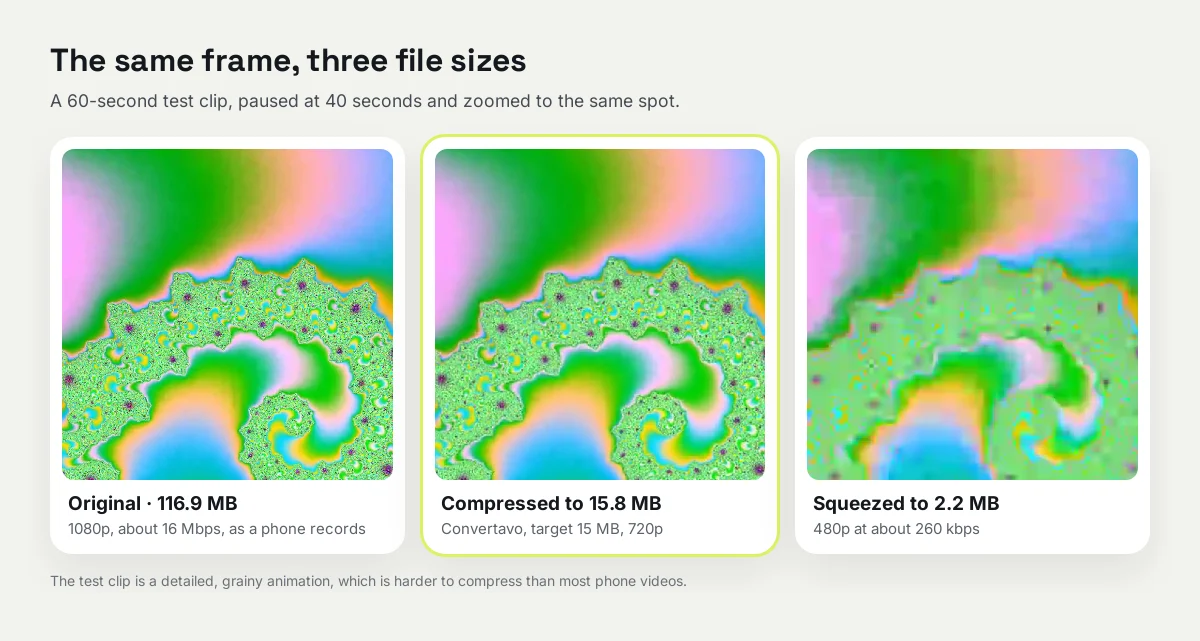
The point is simple. Something has to give up data. Do it yourself and you choose what goes, instead of letting the app guess. Type a little under the size you need: our 60-second test clip, set to 15 MB, came out at 15.8 MB.
What is the WhatsApp video size limit?
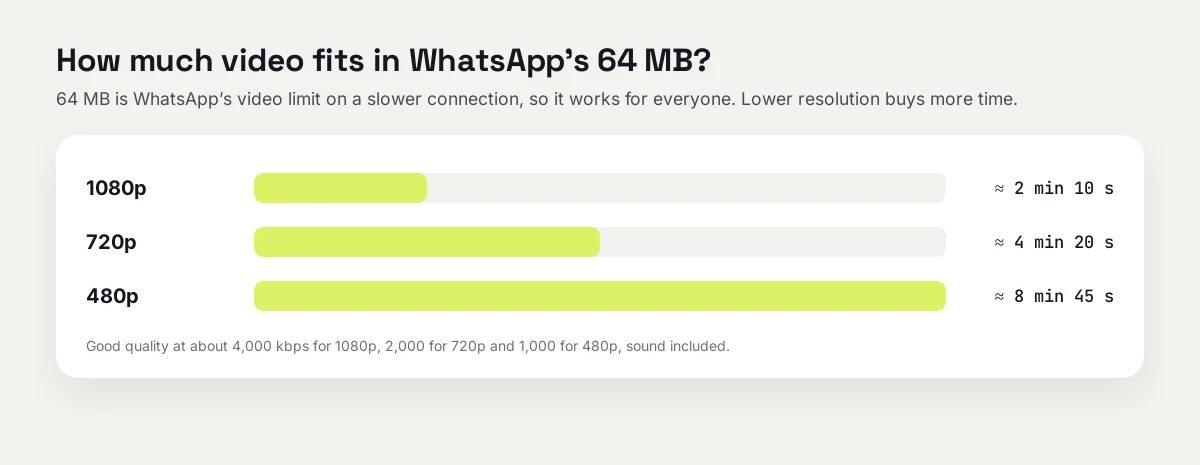
WhatsApp's own help page gives two numbers for a normal video message. On a faster connection the limit is 100 MB at 720p. On a slower connection it is 64 MB at 480p. Many guides still quote 16 MB, which was the limit for years.
So aim under 64 MB and the video sends on any connection. Here are the usual limits side by side.
Where it is going | Size to aim for |
|---|---|
WhatsApp, sent as a video message | Under 64 MB (100 MB on a fast connection) |
WhatsApp, sent as a document | Up to 2 GB, no compression |
Email attachment | About 20 to 25 MB |
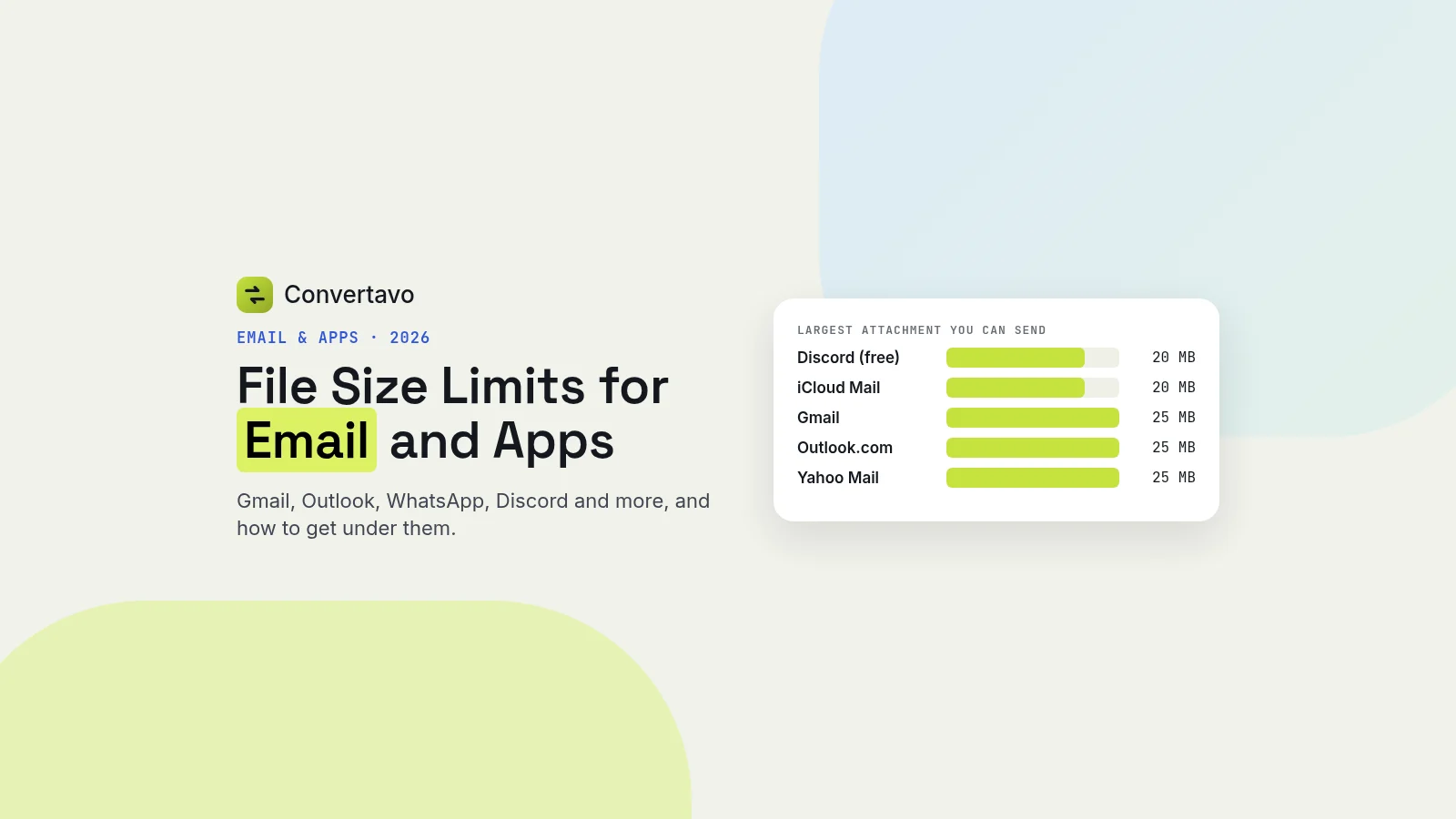
Discord, free plan | 20 MB |
Job and university portals | Often 50 or 100 MB |
For the full list of email and app limits, see file size limits for email and apps.
How much video fits in each size
This is the part people skip, and it explains every blurry video you have ever sent. A size limit is not really about megabytes. It is about megabytes divided by seconds.
Target size | At 1080p | At 720p | At 480p |
|---|---|---|---|
5 MB | About 10 seconds | About 20 seconds | About 40 seconds |
10 MB | About 20 seconds | About 40 seconds | About 1 min 20 s |
20 MB | About 40 seconds | About 1 min 20 s | About 2 min 40 s |
25 MB | About 50 seconds | About 1 min 40 s | About 3 min 25 s |
50 MB | About 1 min 40 s | About 3 min 25 s | About 6 min 50 s |
100 MB | About 3 min 25 s | About 6 min 50 s | About 13 min 40 s |
Find your length in the row you need. If your video is longer than the time shown, drop a resolution and look again.
A ten-minute video squeezed into 10 MB gets about 137 kbps, which is not enough for a moving picture. Nothing can fix that except a shorter clip or a bigger file.
Settings for what you are actually sending
Same three methods. What changes is the size and the resolution you pick.
A long video to family abroad
Send it as a document and let them download it. If the connection is poor at their end, compress it to 50 MB at 720p instead, which downloads far faster and still looks fine on a phone.
A clip for a WhatsApp group
Compress it to 15 to 25 MB at 720p and send it as a normal video. People in a group rarely download a document, so it has to play in the chat or nobody watches it.
A video for a job or college form
Read the limit on the form first, then type a number just under it. Portals usually want 50 or 100 MB, and they often reject anything that is not MP4. An MP4 goes in and an MP4 comes out here, so that part is covered.
A screen recording
These shrink more than normal video, because most of the screen does not move. Turn on Remove audio entirely if there is no commentary, and you will save more again.
An iPhone video that will not play
The file is probably a MOV. Convert it with MOV to MP4 first, then compress it. MP4 plays on Android phones and old laptops without any fuss.
A video over 2 GB
Nothing will send this through WhatsApp. Upload it to Google Drive or another cloud folder, then share the link, shortened with the URL Shortener so it fits neatly in a message.
Is it free, and is my video private?
Yes to both, and here are the real numbers rather than a promise.
Is it free?
One video costs 20 credits, and you get 20 free credits a day with no account. That is one video a day free, or two with a free account. No email address, no card and no watermark on the result.
The file you upload can be up to 25 MB signed out and 100 MB with a free account. Paid plans take files from 200 MB to 1 GB, and Standard and above run in a priority queue.
Is there a watermark?
No. Nothing is added to the picture on any plan. A compressor that stamps its name on your video is no use for anything you actually want to send.
What happens to the file?
It travels over HTTPS and is deleted from our servers one hour after processing. Nobody watches it and nothing is reused. Whatever site you use for a personal video, the deletion window is the thing worth checking.
Can the output be bigger than what I sent?
No. If the video was already small, you still get back something smaller than the file you uploaded.
Why your video is so big, and what actually shrinks it
Three things set the size: the resolution, the bitrate, and how long the video runs. Change one of those or nothing changes.
Bitrate is the amount of data in every second of video, measured in kbps or Mbps. Phones are generous with it. Our test clip of 20 seconds at 1080p and 60 frames a second, recorded at about 16 Mbps the way phones do, already weighed 39 MB. Two minutes of 4K can pass 500 MB.
So size is really bitrate multiplied by length. That is the whole thing.
What saves the most, in order
1. Lower the resolution. This is the biggest win by a distance. A 6-second piece of that 1080p clip started at 12 MB. Compressed at the same resolution it came out at 6.8 MB. Dropped to 720p, it fell to 1.2 MB.
That is not a small difference. A 720p picture has less than half the pixels of 1080p, and on a phone screen you will struggle to tell.
2. Switch the codec to H.265. A codec is the method used to pack the video into the file. The same 1080p clip came out at 1.4 MB with H.265 instead of H.264. Around 40% smaller is more typical. The catch is that fewer devices play H.265, so use it only when you know the other person's phone is recent.
3. Drop 60 fps to 30 fps. If your phone records at 60 frames a second, this halves the number of frames. It is on by default, and a video already at 30 fps is left alone.
4. Lower the audio, or remove it. Lowering the audio to 128 kbps saves a little. Removing it entirely only makes sense for a silent screen recording.
The floor nobody mentions
There is a point below which no compressor can help. Our compressor will not take video below about 150 kbps, because the result stops being watchable.
That is why a ten-minute video cannot become a 10 MB file that anyone wants to watch. Ask for it and you get something nearer 16 MB that still looks rough. Trim the clip, or send a link instead.
What the numbers look like in practice
For a two-minute video with a 25 MB target, there are about 1,700 kbps to spend each second. Roughly 192 of those go to the sound, leaving about 1,500 for the picture.
That is enough for a good 720p image. It is not enough for 1080p, which is exactly why picking a resolution matters as much as picking a size.
Why is my video still not sending, or still blurry?
Nine common cases. Find yours, and the fix is usually one setting.
What is happening | Why | What to do |
|---|---|---|
It still looks blurry after compressing | The target size is too small for the length | Use the size table above, or drop to 720p |
WhatsApp will not send it as a video | The file is over the video limit for your connection | Compress it to under 64 MB, or send it as a document |
There is no HD button | You are posting to Status, where HD is not offered | Send it in a chat, or compress it first |
It arrived as a file nobody can open | It went as a document and their phone has no player for it | Send a compressed MP4 as a normal video |
An iPhone video will not play for them | It is a MOV, or H.265 their phone cannot read | Convert to MP4 and use H.264 |
The upload to the compressor fails | The file is over 25 MB and you are not signed in | Make a free account for 100 MB |
It looks fine on your phone, bad on theirs | They got the version WhatsApp squashed | Resend as a document, or compress it yourself first |
A long video takes forever to send | Big file, slow connection | Compress first, then send, even over Wi-Fi |
The sound drifts out of step | Some phone videos change frame rate as they record | Turn off Reduce the frame rate to 30 fps and compress again |
One habit saves most of this. Send the compressed video to yourself first, open it on a phone, and only then send it to anyone else.
Other free tools for the same job
- MOV to MP4 turns an iPhone video into the format that plays everywhere.
- MP4 to MP3 keeps only the sound, which is far smaller when the picture does not matter.
- Compress PDF does the same job for documents stuck behind an email limit.
Send the next one properly
Tap HD if you are in a hurry, send it as a document when WhatsApp video quality matters most, and use the free Convertavo video compressor at 720p when you want it to look good and still play in the chat. Check the size table before you pick a number, because the length of your clip decides what fits.
Sources: WhatsApp Help: How to send media (video and document limits) and WhatsApp Help: About HD photos and videos, read 11 November 2026. Compression figures are from our own tests with the Compress Video tool.
Frequently asked questions
Why does WhatsApp make my videos blurry?
Because anything sent as a photo or video gets re-encoded on the way, and the app decides how much data to throw away. A document is not touched, which is why sending the video as a document keeps the quality.
What is the WhatsApp video size limit?
WhatsApp's help page gives 100 MB at 720p on a faster connection and 64 MB at 480p on a slower one. A video sent as a document can be up to 2 GB.
How do I send a video on WhatsApp in full quality?
Attach it through Document instead of Gallery. The file arrives exactly as it left you. The trade is that it will not play inside the chat, so the other person has to download it first.
Does the HD button actually help?
Yes, a little. It tells WhatsApp to compress less harshly, but the video is still re-encoded. HD works in chats only, not on Status or profile pictures.
Is it better to compress the video myself?
Usually, yes. You choose what gets given up, and 720p at 15 to 25 MB looks much better than whatever the app decides. It also still plays in the chat.
Will compressing a video remove the sound?
Not unless you ask for it. There is a switch to remove audio, which only makes sense for a silent screen recording.
Try it on your own file
Free, no signup, and your file is deleted an hour later.
Noman Mustafa — Founder of Convertavo I build the file tools on this site. Fifteen years of writing software, and most of my days now go into making PDF, image and OCR processing fast enough to run in a browser tab. I write here about what I learn breaking files apart.