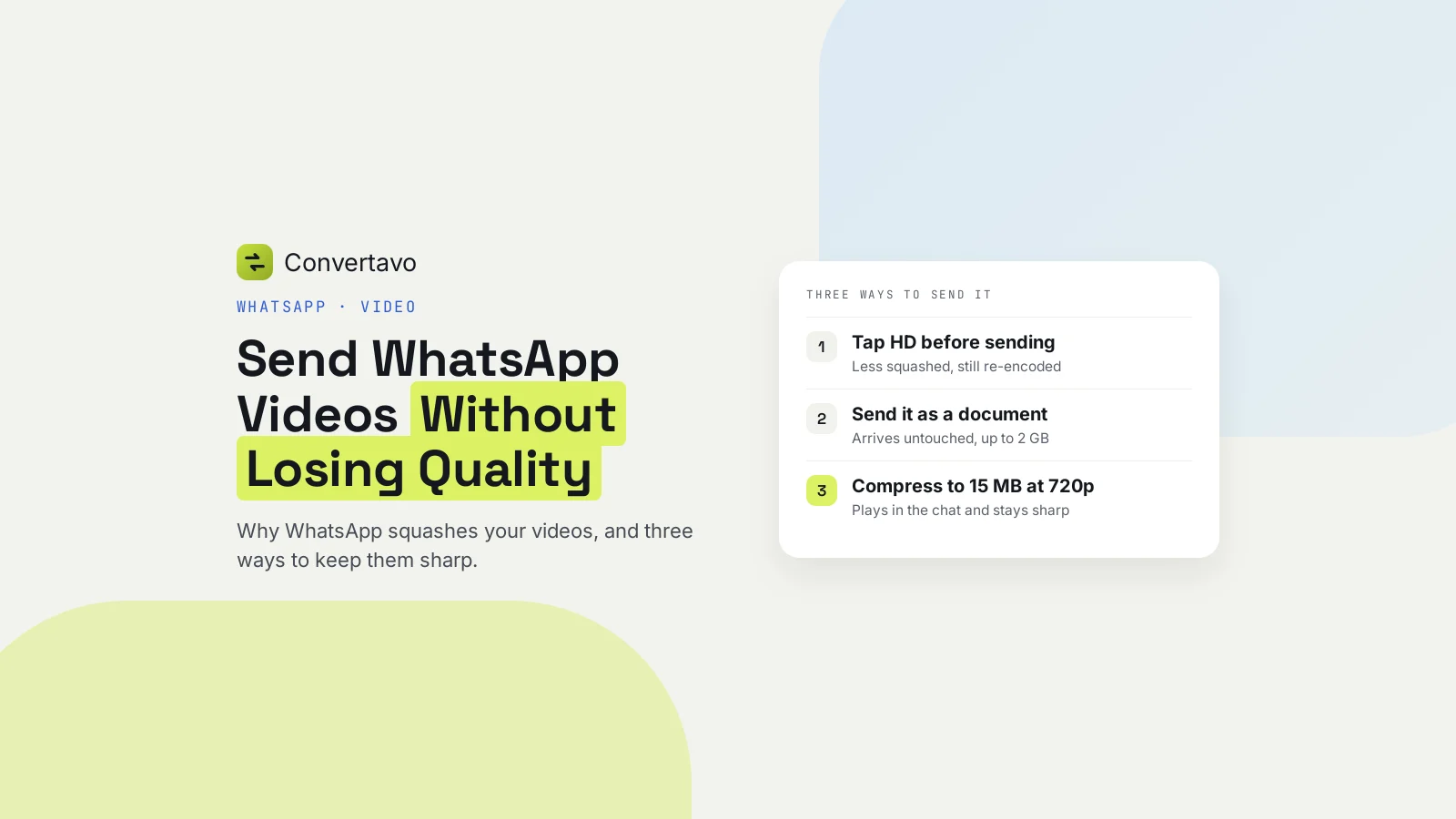
How to Get a Table From a Picture Into Google Sheets
Turn a screenshot or photo of a table into rows in Google Sheets in about a minute, and keep blank cells and leading zeros where they belong.
 Noman Mustafa Owner
- Published
- Reviewed byMuhammad Ijaz
- Reading time10 min
On this page 22 sections
You have a screenshot or photo of a table, and you need those numbers in a spreadsheet.
Google Sheets cannot read an image. There is no menu for it. So you read the table somewhere else first, then bring it into Sheets, and the whole thing takes about a minute.
Here are the five steps to get an image of a table into Google Sheets, plus the part that decides whether your columns land in the right place.
How to get a table from a picture into Google Sheets
Five steps. The whole job takes about a minute once you have the picture.
Screenshot the table if you can. A screenshot beats a photo every time, because the text is already sharp and the page is already flat. Crop it to the table itself, without the page title above it. Photograph only when the table is on paper.
Add the image to the converter. Open Image to Excel and click Choose image, drop the file in, or paste it with Ctrl and V. JPG, PNG, WebP, HEIC, AVIF, GIF, BMP and TIFF all work, up to 25 MB free.
Pick CSV under "Get the table as". CSV is the one marked for Sheets and any app, and it imports cleanly. Excel works too, if you would rather keep an .xlsx file.
Check the table before you take it. An ordinary screenshot is read in a few seconds, right in your browser. The result opens as an editable table under the picture. Click any cell to see where it came from, and fix it on the spot if it is wrong.
Bring it into Sheets. The fastest way is Copy table, then click cell A1 in your sheet and press Ctrl and V. Or download the CSV, and in Sheets go to File, then Import, then Upload. Pick "Insert new sheet" so nothing already there gets wiped.
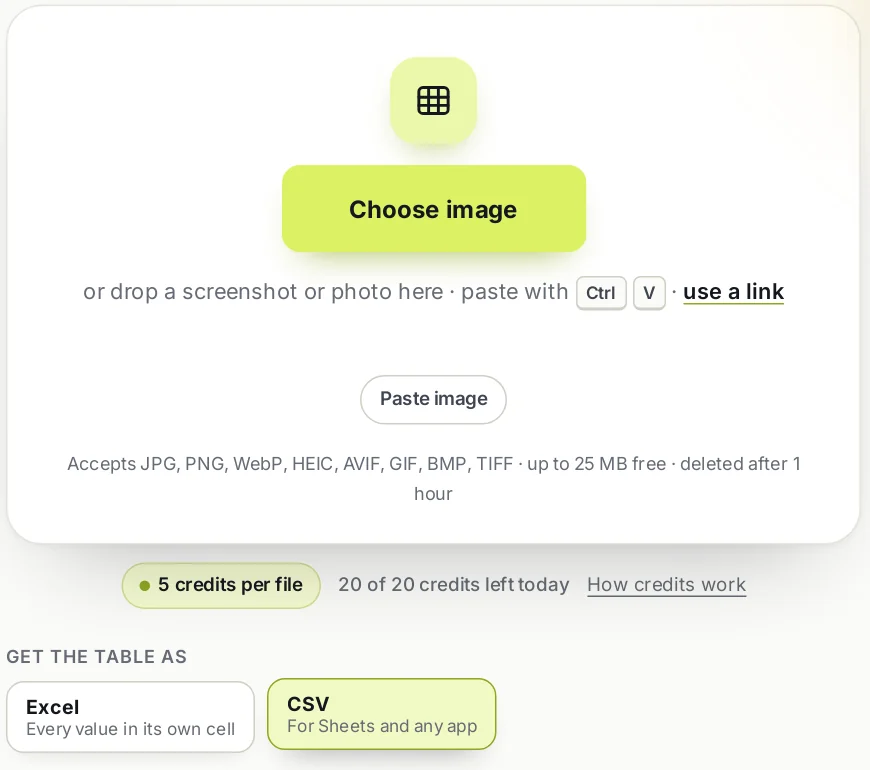
Steps 2 and 3: add the picture and choose CSV.
Before you build anything on the result, look at the confidence figure above the table. On our test screenshot it read 96%, with every cell checked, in under two seconds.
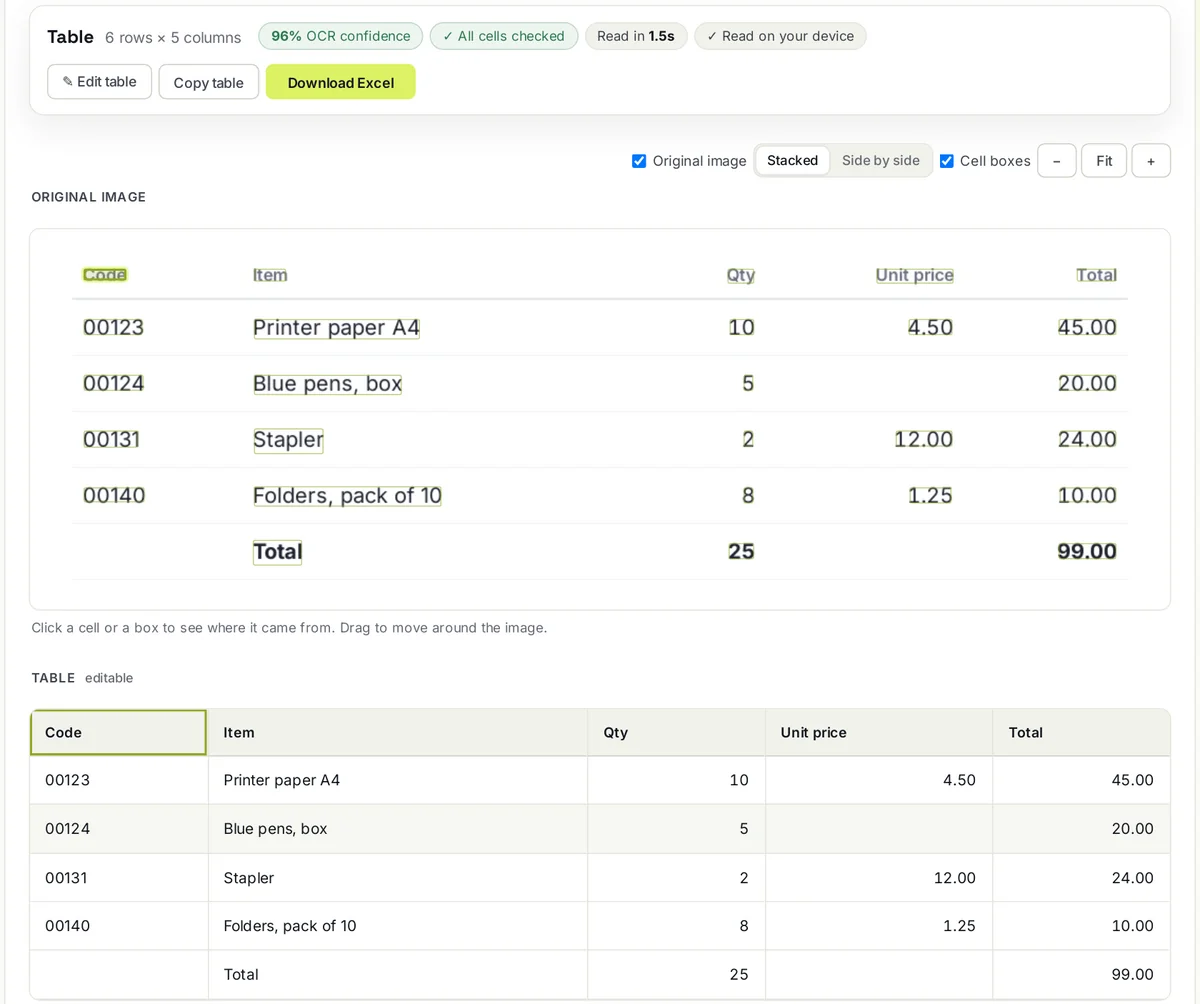
A real result. The empty Unit price in row 3 stayed empty, and 00123 kept its zeros.
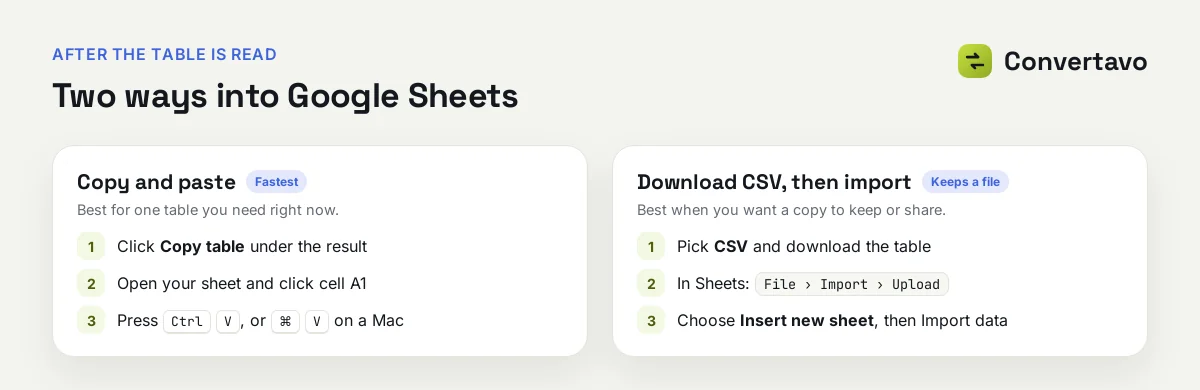
Step 5, two ways.
What goes in, and what comes out
Pictures go in. A real spreadsheet comes out, with each value in its own cell.
Details | |
|---|---|
File types in | JPG, PNG, WebP, HEIC, AVIF, GIF, BMP, TIFF |
Not accepted here | PDF. Use PDF to Excel for those |
File size | Up to 25 MB free, 100 MB with a free account |
Out | Copy into Sheets or Excel, or download Excel (.xlsx), CSV, TSV or JSON |
Where it is read | In your browser for an ordinary screenshot. Large photos, HEIC and TIFF go to our server |
Cost | 5 credits per table, from 20 free credits a day |
Time | A few seconds in the browser, about 10 to 25 seconds on the server |
Accuracy | Around 95% of cells on a clean screenshot, lower on a photo |
Two notes on that table.
The .xlsx keeps numbers as numbers, adds filter buttons to the header, and can include a "Confidence report" sheet for the doubtful cells. The CSV carries plain values only, which is why it imports into Sheets without a fuss.
And 95% is an honest number, not a sales one. On a clean screenshot that is roughly one wrong cell in twenty. That is why the table opens for checking before you download anything.
Settings for the table you actually have
The steps stay the same. Only the picture, or one choice, changes.
A dashboard or report screenshot
This is the easiest case, and the most common one. These tables usually have no grid lines, which is fine, because the column edges are worked out from where the text lines up. Crop tight around the table first, since anything beside it can look like an extra column.
A photo of a printed price list
Shoot straight down onto a flat page and fill the frame. The smallest figure has to be clearly readable, so move closer rather than zooming after the fact. If the list has product codes, tick "Keep numbers as text" before you download, so every code comes back exactly as printed.
A class timetable or a duty roster
These are full of blank cells, which is the thing that breaks most table readers. Here the columns are found across the whole table, so a blank cell stays blank. Still glance down each column in the editor before you copy it.
A bank statement or a payroll sheet
An ordinary screenshot is read in your own browser and never uploaded. A large photo goes to our server, and it is removed an hour after processing. Either way, check the printed total against the total your spreadsheet gives you.
A picture with no table in it
If you only need the words, this is the wrong tool. Image to Text gives you plain text instead of a grid.
A PDF rather than a picture
Send it to PDF to Excel. It pulls the text straight out of a digital PDF and joins a table that runs across several pages.
Is it free, and is it safe?
Yes to both, and here are the real numbers rather than a promise.
Is it free?
You get 20 credits a day with no account, no email address and no card. One table costs 5 credits, taken once when you first download it, so four tables a day cost nothing. Edits and further downloads of the same table are free. A free account raises it to 50 credits a day and 100 MB per file.
There is no watermark on the spreadsheet, no captcha and no ad wall.
What happens to my file?
An ordinary screenshot never leaves your device. It is read in your browser, and nothing is uploaded until you download, which sends only the finished table.
Some pictures do go to our server: photos over 8 megapixels, HEIC and TIFF files, and anything the browser could not read. Those are deleted from the servers one hour later, automatically. Nothing is read by a person, nothing is reused to train anything, and every upload runs over HTTPS.
This matters more here than with most tools. People put invoices, payroll sheets and bank statements through table readers. If you would not email the file to a stranger, check where it goes before you upload it anywhere.
Do I need to install anything?
No. It runs in a browser on Windows, macOS, Linux, Android and iOS. Google Sheets is in the browser too, so the whole job happens in two tabs.
Why columns end up in the wrong place
Reading a table out of a picture is two jobs, not one, and the second job is where tables go wrong.
The first job is reading the characters. The second is working out which cell each one belongs to. A table with borders is easy, because the lines say where the cells are. Most screenshots have no borders at all, so the layout has to be worked out from where the text lines up.
This is a known hard problem. The Tesseract documentation, from the open source engine behind much of free OCR, says plainly that it struggles with tables unless extra layout analysis is added on top.
The blank cell problem
Here is the bug that ruins more spreadsheets than any other.
If each row is read on its own, a row with an empty cell simply produces fewer values. Everything after the gap then slides one column to the left. On a bank statement that means a debit quietly lands in the credit column, and your totals are wrong in a way that looks completely normal.
The fix is to work out the column edges once, from the whole table, then place each value in the column it actually sits under. That is why a blank cell leaves a gap here instead of dragging the row along with it.
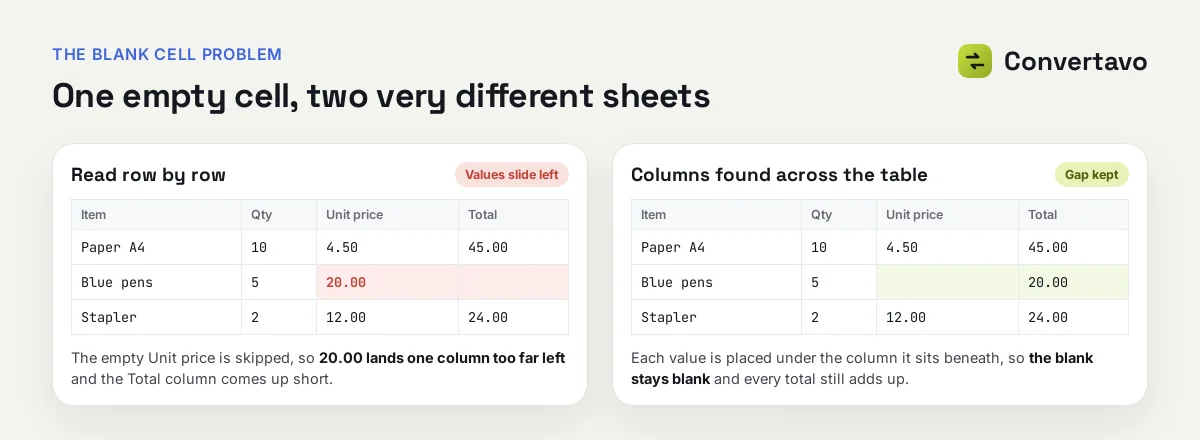
Same row, read two ways.
If you use another tool, test it on a table with blank cells before you trust it with money.
Why 00123 must not become 123
A code with a leading zero is not a number. It is an account number, an invoice reference or a product code, and the zeros are part of it.
So a leading zero is kept as text here, even when numbers are being read as numbers. If something else in your sheet lost its zeros, tick "Keep numbers as text" and download again. Every cell then comes back exactly as printed.
Decimal marks, dates and bracket negatives
1,250.75 and 1.250,75 are the same amount written two ways. Set the Decimal separator under the table to match, or your amounts arrive as text and will not add up.
Dates are kept as printed unless you choose a real date format under "Dates (Excel)". Accounting style negatives in brackets, like (210.25), come back as minus figures, and currency symbols are stripped, which is what you want before you start adding columns.
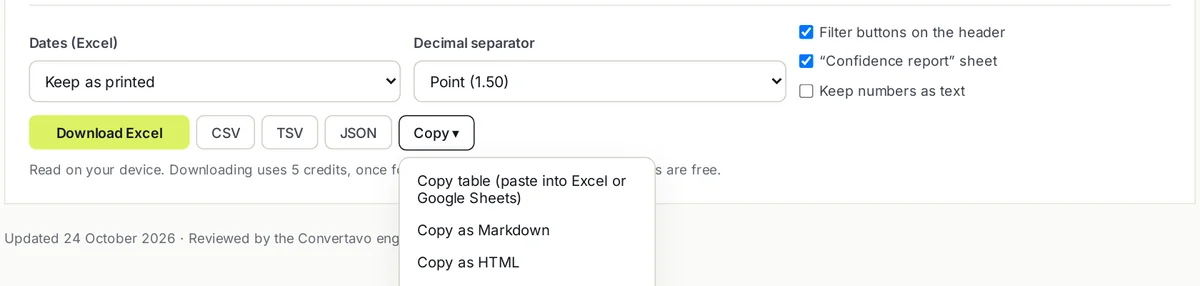
The choices under the table, with the Copy menu open.
How to check the result in 30 seconds
Check the number columns first, because a wrong digit is the easiest mistake to miss. Then check one total in your sheet against the total printed in the picture. If those two match, the rest is almost certainly fine.
Why did my spreadsheet come out wrong?
Almost every bad result is the picture, or one setting. Find yours below.
What you got | Why it happened | What to change |
|---|---|---|
Two columns ran into one | No grid lines and the columns sit close together | Crop tighter around the table, and screenshot it instead |
Extra columns that are not in the table | Something beside the table was read as a column | Crop so only the table is in the picture |
A title sits above the headings | The page heading was inside the picture | Crop it out, or delete that row in the editor |
The whole table is skewed | The photo was taken at an angle | Shoot straight down onto a flat page |
Small figures are wrong | The text is too small to read clearly | Retake it closer or at a higher resolution |
One cell is wrong | A smudge, a glare spot or an odd font | Click the cell in the editor and correct it before you copy |
Leading zeros vanished | The cell was read as a figure | Tick "Keep numbers as text" and download again |
Amounts came in as text | The decimal mark does not match the table | Switch the Decimal separator between point and comma |
A handwritten table is a mess | Handwriting in cells is the hardest case there is | Expect to check every figure, or type it out |
The PDF would not upload | This tool takes pictures only | Use PDF to Excel instead |
If you only fix one thing, fix the capture. A straight, tight screenshot of the table beats every setting on the page.
Other free tools for the same job
PDF to Excel handles PDFs, including scanned ones, and joins a table that runs over several pages.
Image to Text is the one you want when the picture has no table, just words.
Compress Image brings a photo under 25 MB when the camera file is too big.
Try it on the screenshot you already have
Take the table you were about to retype, run it through the free Convertavo Image to Excel converter, and paste the result into Google Sheets. That is the quickest way from image to Google Sheets without typing a cell. Check one total against the picture before you build anything on top of it. Four tables a day are free, with no account and no watermark.
Sources
Improving the quality of the output, Tesseract documentation, for tables being a known weak spot without extra layout analysis.
Image to Excel converter, Convertavo, read 29 October 2026, for the formats, options, credits, limits, timing and the 95% figure.
Frequently asked questions
Can Google Sheets read a table from a picture?
No, there is no built-in way. You read the picture into a table first, then copy it into Sheets or import a CSV with File, Import, Upload. The whole thing takes about a minute.
Should I pick CSV or Excel?
CSV for Google Sheets, because it imports with no fuss. Choose Excel when you want numbers kept as numbers, filter buttons on the header and a sheet listing the doubtful cells. For a quick job, Copy table and paste it straight in.
How accurate is it?
Around 95% of cells on a clean screenshot, lower on a photo, and much lower on handwriting. The table opens for checking before you download, so check the number columns and one printed total.
Why did my columns move one place to the left?
A blank cell in the row is the usual cause, in tools that read each row on its own. A reader that works out the column edges across the whole table keeps the gap where it belongs.
Is my bank statement safe to upload?
An ordinary screenshot is read in your browser and never uploaded. Large photos, HEIC and TIFF files go to the server and are deleted an hour after processing. Check that policy on any site before you upload money documents.
Try it on your own file
Free, no signup, and your file is deleted an hour later.
Noman Mustafa — Founder of Convertavo I build the file tools on this site. Fifteen years of writing software, and most of my days now go into making PDF, image and OCR processing fast enough to run in a browser tab. I write here about what I learn breaking files apart.