How to Make Images Load Faster on a Website
The exact pixel widths, formats and KB targets that make images load faster on a website, plus the free setting most sites forget.
 Noman Mustafa Owner
- Published
- Updated
- Reading time9 min
On this page 16 sections
Your pages are slow, and the images are almost always the reason. Make the images load faster and the whole page follows.
A photo straight from a phone is about 4,000 pixels wide and a few MB in size. Your page shows it at maybe 800 pixels. So the visitor downloads five times more than they can even see.
This guide gives you the exact widths, formats and file sizes that make images load faster. Fixing one page takes about ten minutes with the free Convertavo image compressor.
How to make images load faster on a website
Five steps. The first three take about two minutes for a whole folder.
Add every image from the page. Open the image compressor and click Choose files, or drop a whole folder in with Choose folder. Each file can be up to 25 MB, and you can paste an image link instead.
Tap the Website preset. It sets WebP and a maximum width of 1920 pixels in one click. Those two choices do most of the work, because a narrower picture is a smaller file before any quality is touched.
Look at the Difference view before you download. Drag the slider across the picture, then switch to Difference, which lights up only the parts that changed. Zoom to 100%, since that is where compression shows first.
Download, and keep your originals. Save the batch as one zip and upload those files to your site. Never compress a file that is already compressed, because each pass throws a little more detail away.
Add width and height to every image tag. This stops the page jumping around while it loads. Then add loading="lazy" to every image except the first one on the screen.
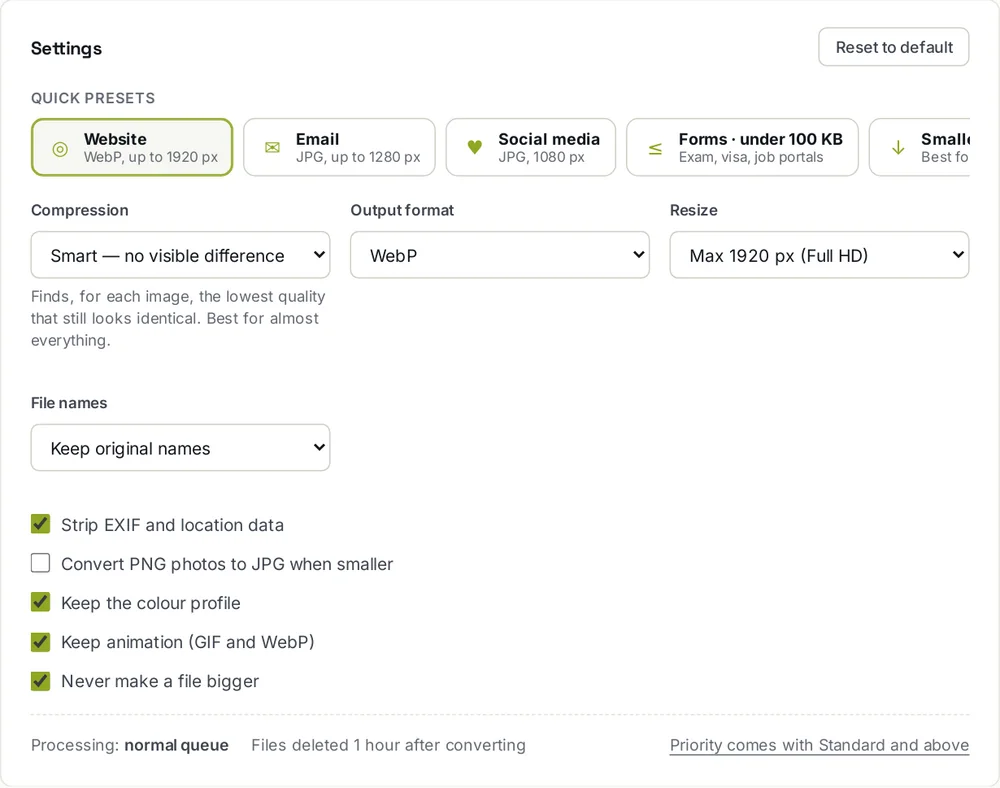
Step 2: the Website preset sets WebP and a 1920 pixel limit in one click.
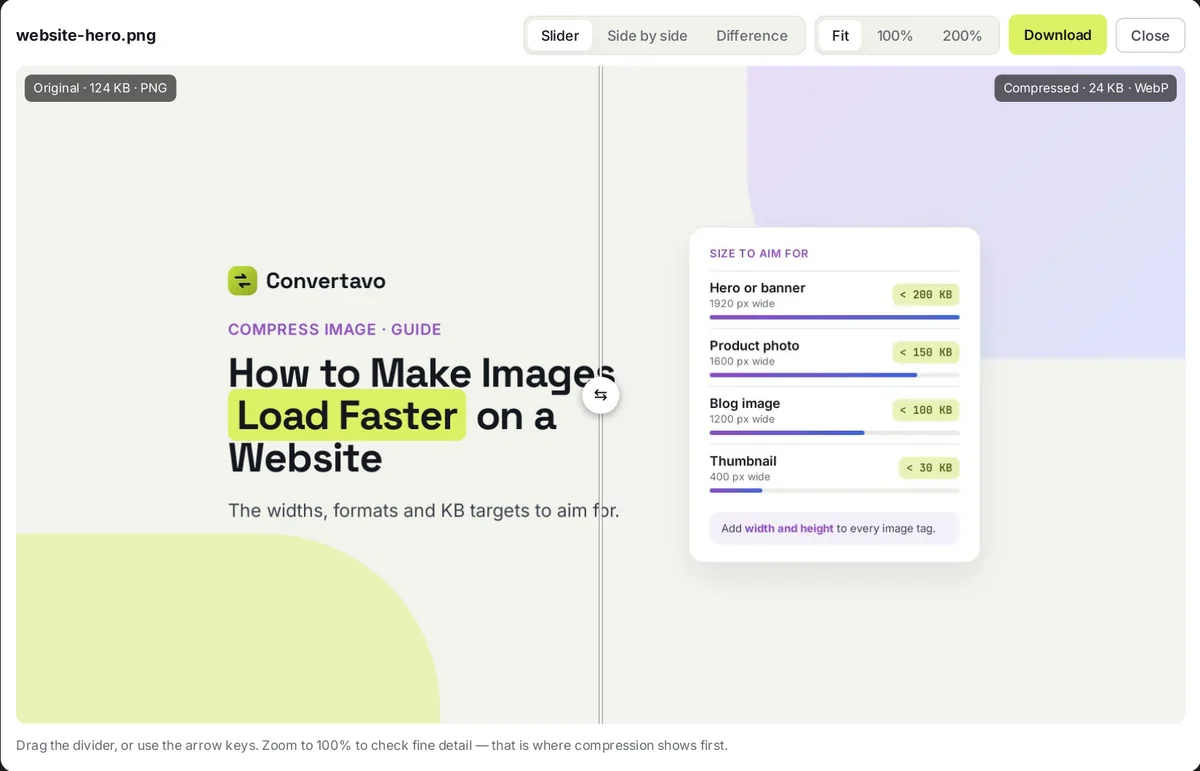
Step 3: drag the divider to compare the original with the compressed copy.
That last step costs nothing and most sites skip it. It is the difference between a page that loads fast and a page that only feels fast.
How big should a website image be?
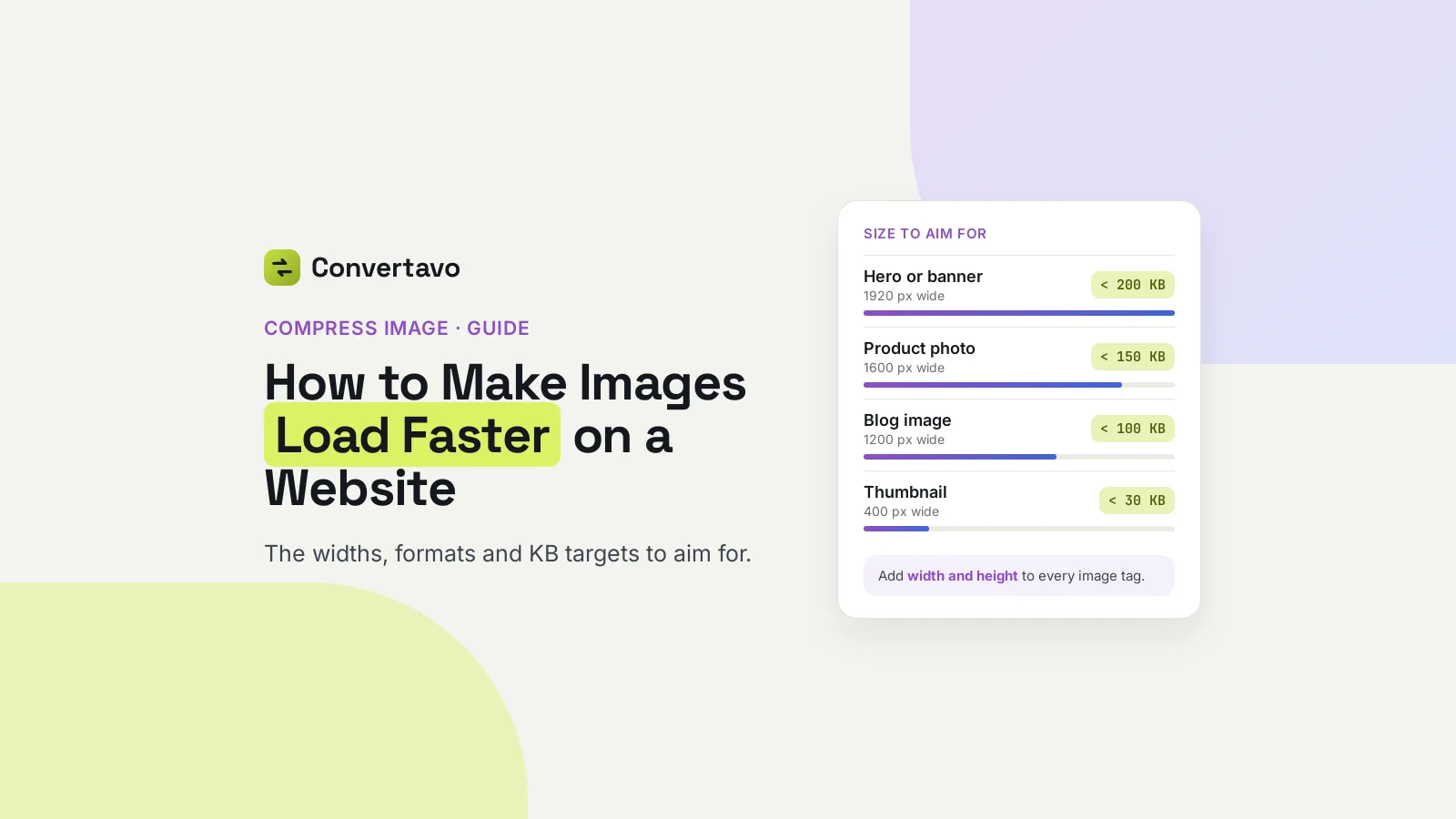
As a rule of thumb, no wider than twice the space it fills, and under 150 KB. Here are the targets we aim for, which you can copy straight into your own checklist.
Where the image goes | Width in pixels | File size to aim for | Format |
|---|---|---|---|
Full width hero or banner | 1920 | Under 200 KB | WebP or AVIF |
Image inside a blog post | 1200 | Under 100 KB | WebP |
Product photo on a shop page | 1600 | Under 150 KB | WebP |
Thumbnail or listing card | 400 | Under 30 KB | WebP |
Screenshot with text in it | 1200 | Under 150 KB | PNG or WebP |
Logo or icon | Its display size | Under 10 KB | SVG or PNG |
Photo you are emailing | 1280 | Under 1 MB | JPG |
Two notes on that table. Screens with fine pixels look sharper if the file is about twice the display width, which is why a 600 pixel slot gets a 1200 pixel image. And a screenshot stays PNG or WebP, because JPG puts a faint smudge around letters.
If you only need to change the width and height, use Resize Image instead.
Settings for the four most common jobs
The steps stay the same. Only the width and the format change.
Images for a WordPress blog post
Use the Website preset and set the width to 1200 pixels. WordPress makes its own smaller copies, so there is no reason to upload a 4,000 pixel photo. Compress the picture before you upload it, not after, because plugins work on whatever you gave them.
Product photos for an online shop
Shops need two sizes of the same picture. Compress one batch at 1600 pixels for the product page, then run the same folder again at 400 pixels for the listing thumbnails. Always start from the original both times.
A homepage hero image
This one picture usually decides your Largest Contentful Paint score, so it gets the most care. Keep it at 1920 pixels and under 200 KB, and never put lazy loading on it. Lazy loading tells the browser to wait, which is the opposite of what you want here.
Pictures you are putting in a PDF or an email
Use the Email preset, which gives you JPG at 1280 pixels. JPG is the safe choice, because some older email apps still trip over WebP. If the PDF itself is the thing that is too heavy, use Compress PDF.
If your site is still serving old JPG and PNG files, the quickest win is the WebP Converter.
Is it free, and do my photos get uploaded?
Yes it is free, and no, they do not have to be uploaded at all. Here are the real numbers.
Free. You get 20 credits a day and each image costs 1 credit. That is 20 images a day with no email address and no watermark.
Limits. Files up to 25 MB each. Signed out you can do 3 at a time, a free account takes 10, and the largest plan handles 100. A batch is usually ready in 4 to 10 seconds.
Private. Uploads are deleted one hour after processing, and nothing is stored, read or reused. There is also a Compress on this device panel, where your browser does the work. Nothing is uploaded and no credits are spent.
Location data. Phone photos often record where they were taken. Strip EXIF and location data is on by default, which matters if you are posting a picture taken at home.
What Google actually measures, in numbers
Three numbers, and images affect two of them. Google calls these the Core Web Vitals, and it judges your page at the 75th percentile of real visits. That means three out of four visitors must get the good score, so your own fast phone on home wifi tells you very little.
Metric | What it measures | Good score | How images change it |
|---|---|---|---|
LCP | How soon the biggest thing on screen appears | 2.5 seconds or less | Your hero image usually is the biggest thing |
CLS | How much the page jumps while loading | 0.1 or less | Images with no width and height are the main cause |
INP | How fast the page answers a tap | 200 milliseconds or less | Images barely touch this one |
How much each format really saves
Convertavo saved one test image four ways. As a PNG it was 415 KB. As a JPG at quality 82 it came to 65 KB. In WebP it was 23 KB, and AVIF reached 21 KB.
Read that again. The same picture, no visible change, and the WebP file is about one eighteenth of the PNG.
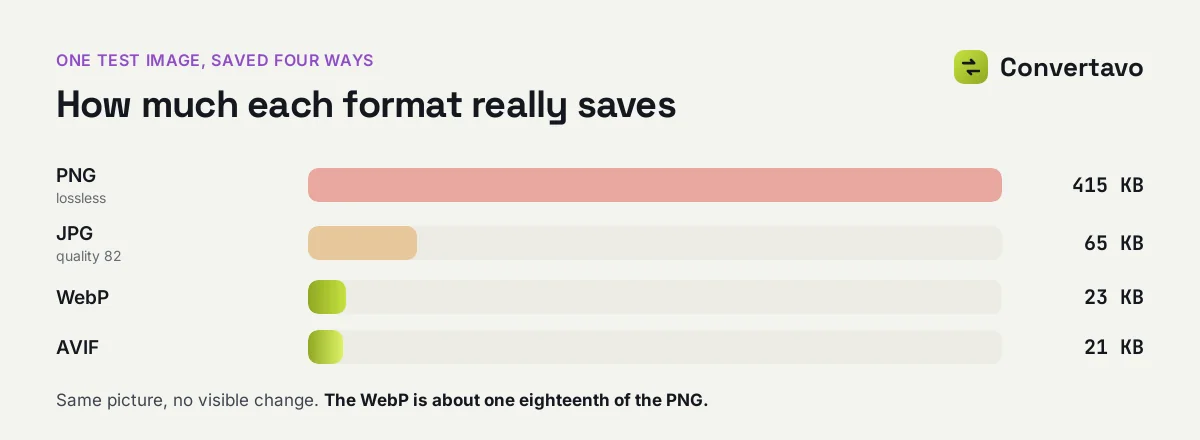
The same picture in four formats.
We ran the cover of this post through the same tool with the Website preset. The 124 KB PNG came back as a 24 KB WebP, 81% smaller, with a visual quality score of 100 out of 100.
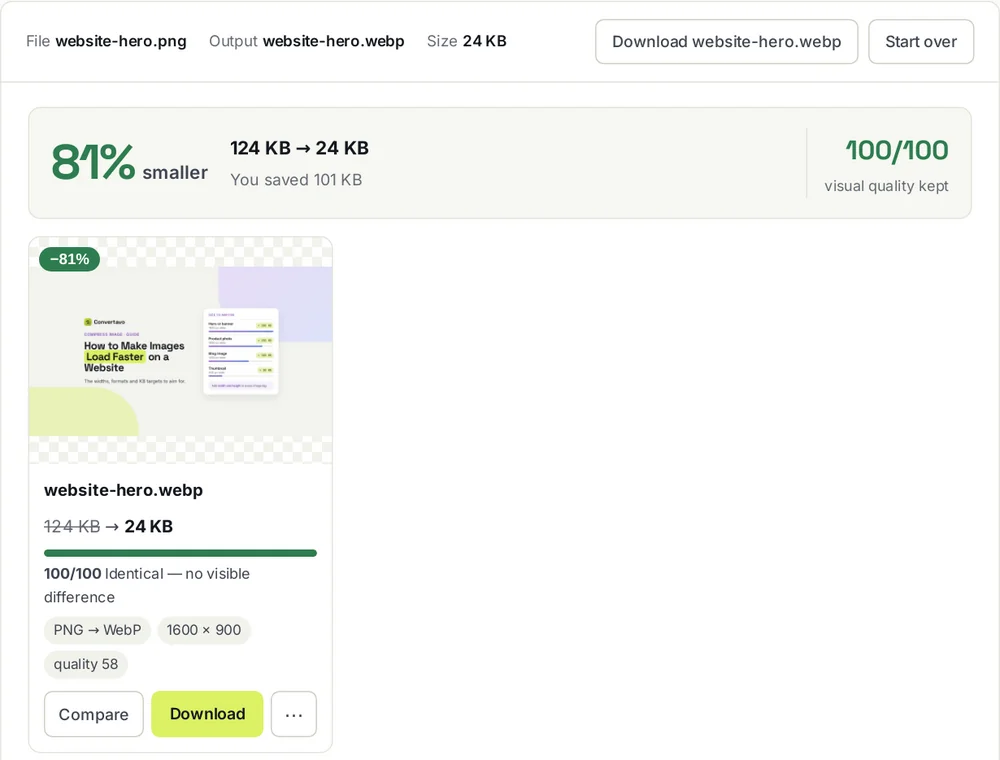
This post's own cover, before and after.
Where the quality slider stops paying
A separate test started with a 326 KB photo. At quality 82 it came down to 118 KB with no visible difference. Between 50 and 70 it hit 54 KB, and the sky began to look patchy. Below 50 it reached 22 KB and the sky filled with little blocks.
So the useful range is 75 to 85, and 82 is a safe default. Above 90 you keep the full size for nothing. Below 50 you damage the picture to save a few KB.
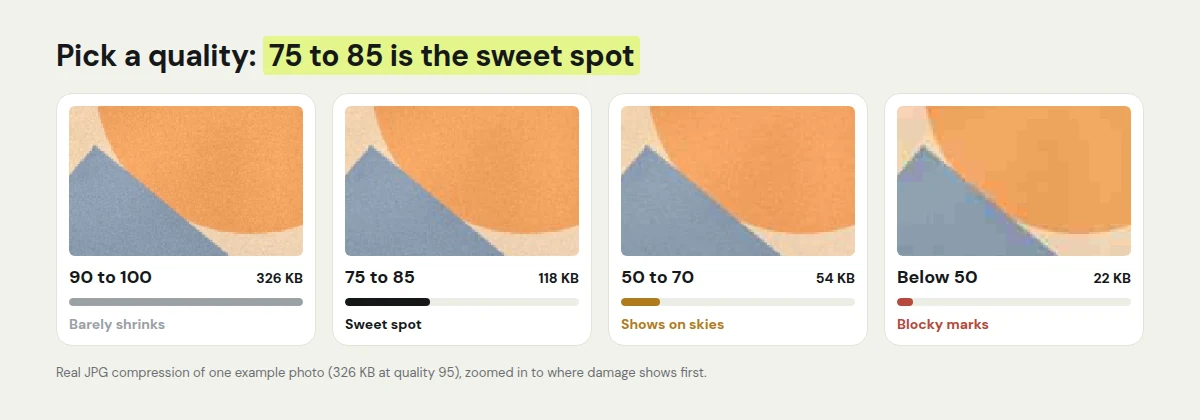
Between 75 and 85 is where photos stay sharp and small.
Three free wins most sites miss
Width and height on every image tag. The browser then reserves the right space, and your CLS stops wobbling. It costs two attributes.
Lazy loading on every image except the first. The ones further down wait until the visitor scrolls near them. Never put it on the hero image, because that delays your LCP.
One compression pass, always from the original. Compressing an already compressed file throws detail away for almost no saving. Keep a clean folder of originals and work from it every time.
Why is my image still too big, or why does it look wrong?
Nine times out of ten it is the pixel width, not the quality setting. Find your case below.
What you are seeing | Why it happens | What to change |
|---|---|---|
Still over the size limit | You lowered quality, but the photo is still 4,000 pixels wide | Set Resize to 1920, or use Target file size and type your number |
Letters look fuzzy | A screenshot was saved as JPG | Set Output format to PNG or WebP |
Blotchy patches in the sky | Quality went below about 70 | Go back to Smart mode, or type 82 |
The file came back the same size | It was already as small as it goes | That is correct behaviour, since the tool never makes a file bigger |
A see-through background turned white | JPG cannot hold transparency | Choose PNG or WebP instead |
An animated GIF stopped moving | The output format does not animate | Keep the animation option on and output animated WebP |
A client says they cannot open the file | Some older apps still do not read WebP | Send a JPG copy as well |
The site is no faster after all this | The page is still asking for the old files | Clear the cache, then check which file the page really loads |
If you are not sure whether a change is visible, use the Difference view. It lights up only the pixels that moved, so you stop guessing.
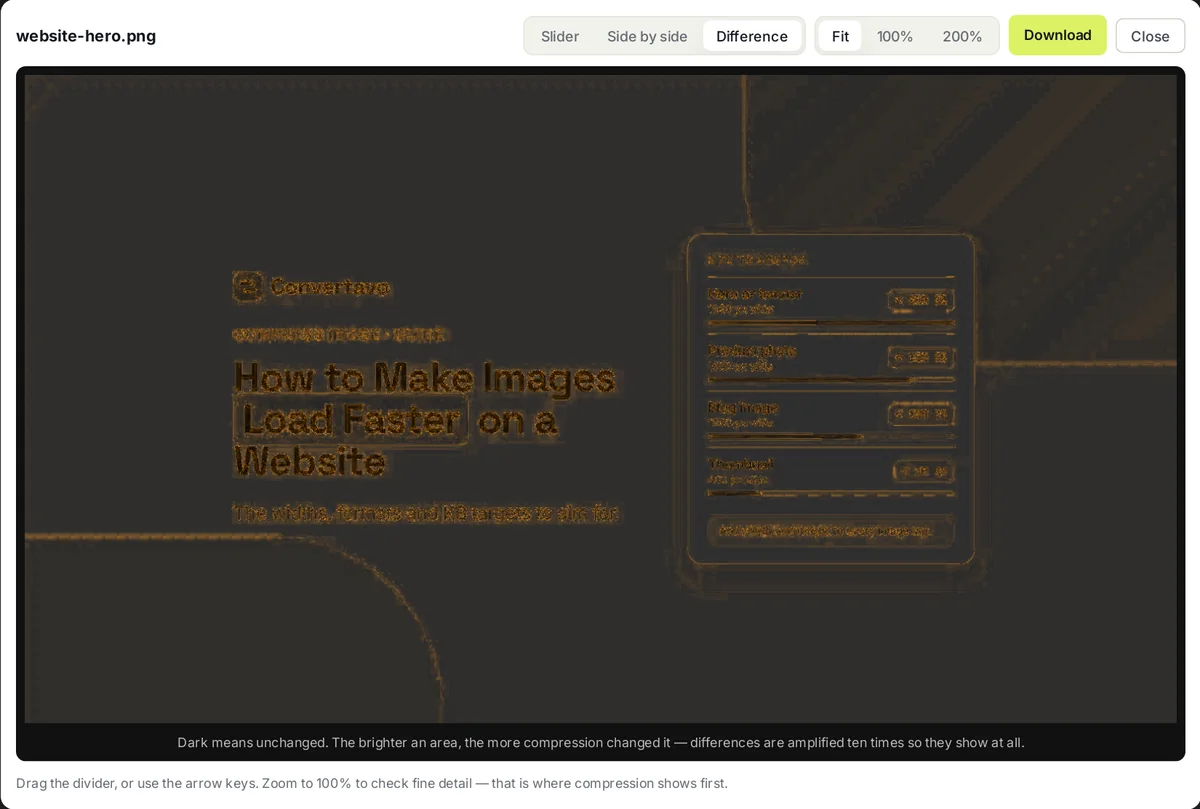
Dark means unchanged. Only the edges of the text and shapes moved at all.
Other free tools for the same job
Resize Image changes the width and height only, when the file size is already fine.
WebP Converter turns a folder of old JPG and PNG files into WebP, or back again for a client.
Compress PDF handles the case where the PDF, not the photo, is too heavy to email.
Fix one page today
Pick your slowest page and make its images load faster: run every image on it through the image compressor with the Website preset, and add width and height to the tags. That is twenty images a day free, with no account. Then test the page again on a phone, not on your laptop.
Sources
Web Vitals, web.dev, last updated 31 October 2024, for LCP 2.5 seconds, INP 200 milliseconds, CLS 0.1 and the 75th percentile rule.
Compress Image, Convertavo, read 12 October 2026, for the presets, modes, limits, credits and the quality and format test numbers.
Frequently asked questions
What file size should a website image be?
Under 150 KB for most pictures, and under 200 KB for a full width hero. Thumbnails should sit under 30 KB. Width matters just as much, so keep body images at 1200 pixels.
Does compressing images really make a site faster?
Yes, because images are usually the heaviest thing on the page. Smaller files arrive sooner, which improves Largest Contentful Paint, one of the three scores Google measures.
Is WebP safe to use now?
Yes. Chrome, Safari, Firefox and Edge all open WebP and AVIF. Keep a JPG copy for email, since some older mail apps still struggle with it.
Should I compress images before or after uploading to WordPress?
Before. WordPress makes its own copies from whatever you give it, so a heavy upload means heavy copies.
Does compressing images help SEO?
Indirectly. Speed is a small ranking signal, and a slow page loses visitors before they read anything. The bigger win is that people stay.
How do I check whether my images are the problem?
Open your page in PageSpeed Insights and look at what it names as the largest element. If that is a photo, images are your problem.
Can I compress a whole folder at once?
Yes. Drop the folder in, and every picture inside gets compressed. Signed out that is 3 files at a time, a free account takes 10, and the largest plan handles 100.
Try it on your own file
Free, no signup, and your file is deleted an hour later.
Noman Mustafa — Founder of Convertavo I build the file tools on this site. Fifteen years of writing software, and most of my days now go into making PDF, image and OCR processing fast enough to run in a browser tab. I write here about what I learn breaking files apart.