How to Scan a QR Code From an Image, PDF or Your Camera
Scan a QR code from a photo, screenshot, PDF or your camera. Codes are read on your device, and you see the link before you open it. No app needed.
 Noman Mustafa Owner
- Published
- Updated
- Reading time7 min

On this page 13 sections
A friend sends you a photo of a concert ticket. There's a QR code on it. You're sitting at a laptop, and you can't exactly point a laptop at itself.
That's the gap this QR code scanner fills. Upload the picture, and the code gets read in about a second.
It also handles screenshots, PDFs, Word and Excel files, short videos, and your webcam. Nothing to install. No account.
How to scan a QR code from an image
Open the Upload tab first. That's where the QR code scanner already starts, so most of the time there's nothing to click.
Now add your file. Three ways work:
Drag it onto the box
Click the box and pick it from your device
Copy an image from anywhere and hit Ctrl+V
Each file can be up to 15 MB, which most phone photos stay well under.
Under the box sits a dropdown marked "Look for". Leave it on All codes. You'd only touch it if an image is covered in codes and you want one specific kind.
Then wait a beat. The content shows up underneath.
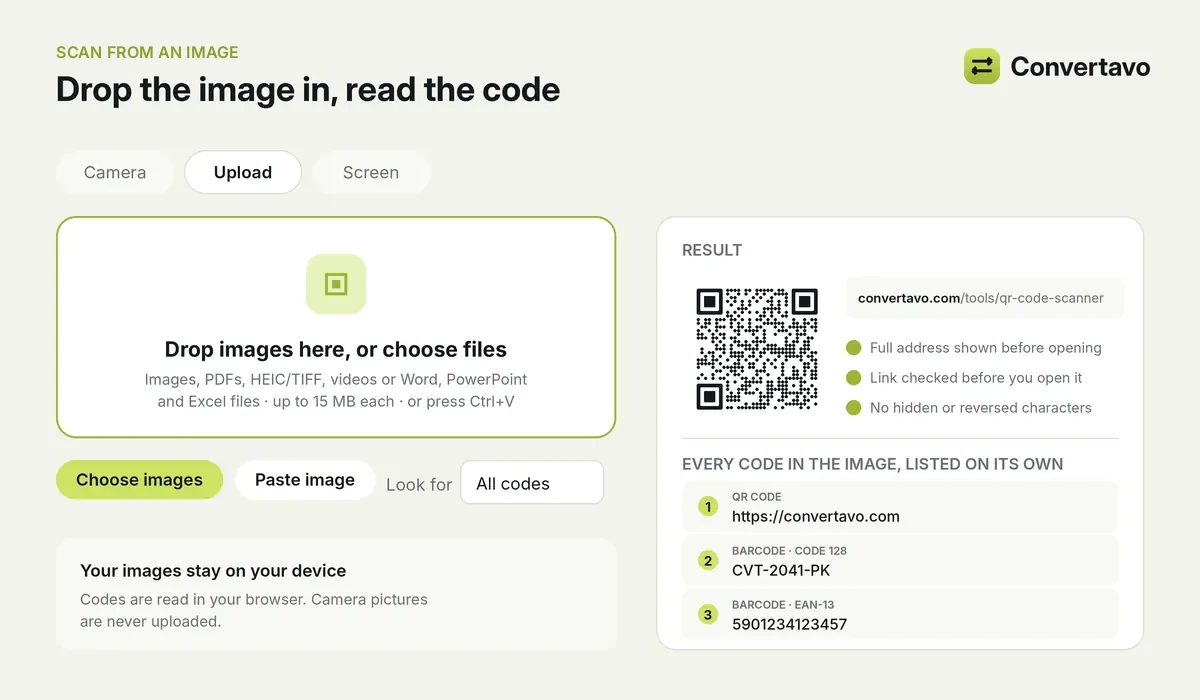
Drop the image in, and every code inside it is listed on its own.
That screenshot step is the one people use most. Someone pastes a code into a chat, you grab a screenshot, press Ctrl+V, done. You never had to save the file anywhere.
Using your camera instead
Open the Camera tab and say yes when the browser asks for access. Hold the code up to the lens. The answer appears on screen.
This is the one to use when the code is printed on something in front of you. A parcel, a poster, somebody else's phone.
Reading a code that's on your screen
The Screen tab is a bit different, and it's worth knowing about.
Say a code is showing in another window. Click Share screen, choose that window or your whole display, and the QR code scanner hunts for a code inside it. Nothing gets uploaded while this happens.
When you only have a link to the picture
Got a web address that points at an image file, not a web page? Paste it in the link box and press Fetch and scan.
One thing to know here. Fetching has to happen from our server, so that link does get sent to us. Everything else on this page stays on your machine.
What files can the scanner read?
Quite a lot more than photos. A code sitting inside a spreadsheet or a screen recording doesn't get missed.
What you scan | How it is read |
|---|---|
Photos and images (JPG, PNG, WebP, GIF) | Every code in the picture |
Screenshots | Paste with Ctrl+V, no saving needed |
PDF files | Page by page |
Word, PowerPoint and Excel files | Every picture inside the file |
Short videos | Frame by frame, over the first 2 minutes |
Live camera | Phone, tablet or laptop webcam |
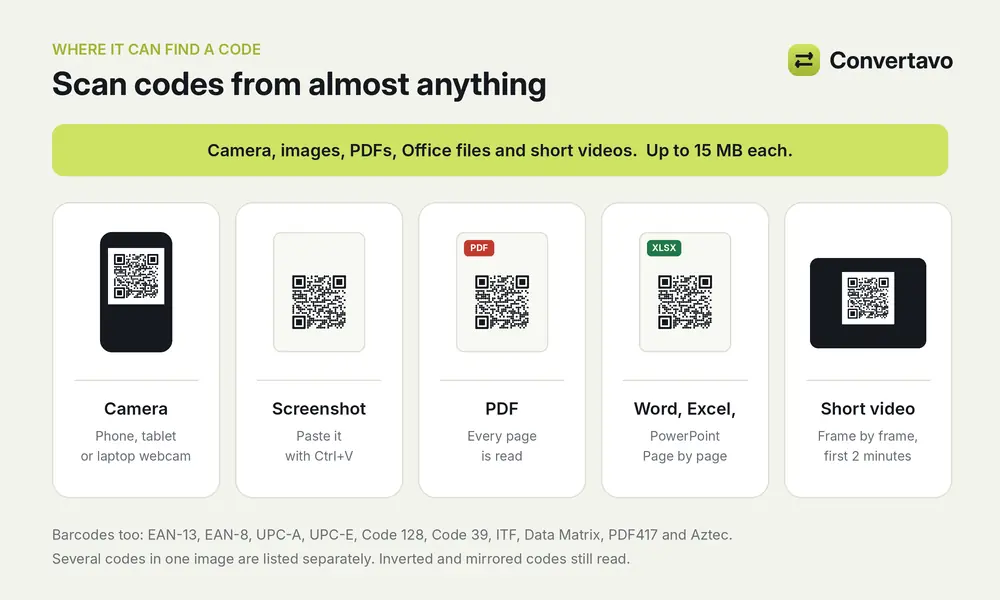
Where the scanner looks for a code.
The 15 MB cap applies to each file. If a photo comes in heavier than that, run it through Compress Image first and try again.
HEIC and TIFF are a bit fussy. They work in browsers that can open them, and they fail quietly in browsers that can't. Save the photo as a JPG and the problem goes away.
It reads barcodes too
Same page, same box. Drop in a photo of a product, a book or a shipping label and the barcode gets read.
Ten formats are supported: EAN-13, EAN-8, UPC-A, UPC-E, Code 128, Code 39, ITF, Data Matrix, PDF417 and Aztec.
Three situations trip up most readers. This one handles all three:
Lots of codes in one picture. Scan a full sheet of labels, or a ticket carrying both a QR code and a barcode, and each result gets listed separately.
Light code on a dark background. Inverted codes still read fine.
Mirrored codes. Even a code caught in a reflection gets picked up.
Whatever comes back is the exact text that was encoded. Nothing is tidied up or guessed at.
Is the code you just scanned actually safe?
Here's the uncomfortable part of QR codes. The square tells you nothing. Any link at all can hide inside it, and you only find out where it goes after you've tapped.
Scammers worked this out years ago. They stick their own codes on parking meters, mail out fake invoices with codes on them, and leave flyers in cafes. There's even a name for the trick now: quishing, short for QR code phishing.
So the QR code scanner doesn't open anything. It shows you the full web address and the result of its check, and then it waits for you.
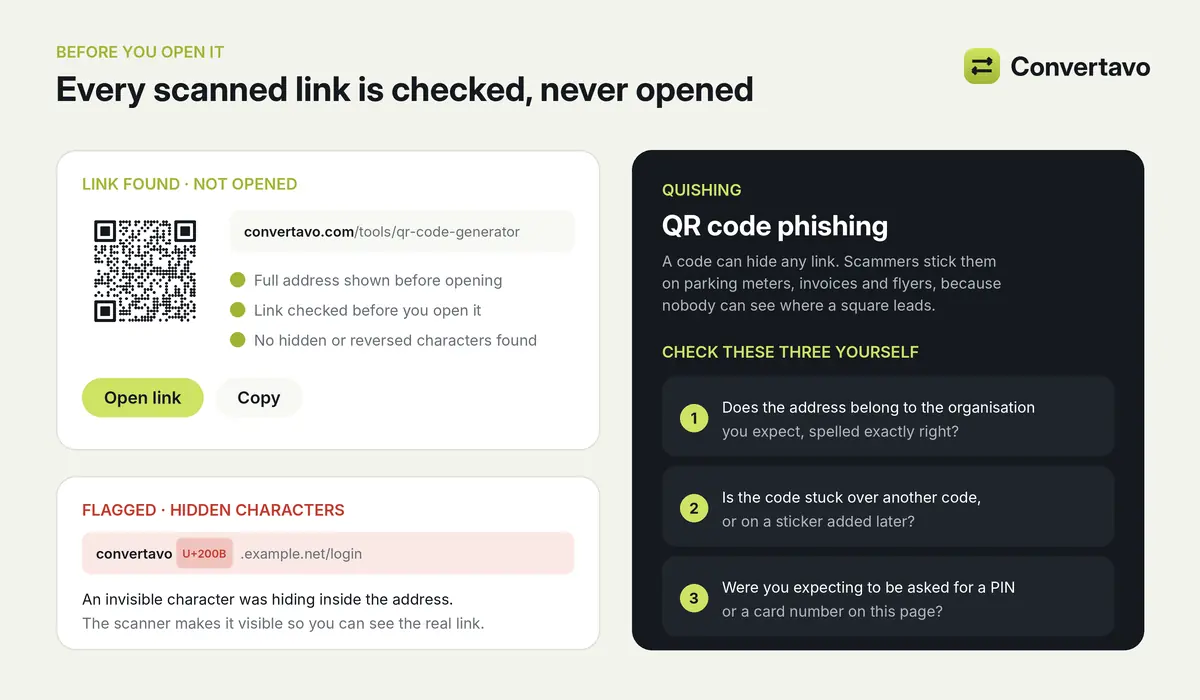
The link is shown in full and checked. You decide whether to open it.
There's a sneakier version of this worth knowing about. Some scam links hide invisible characters inside the address, or characters that flip the text backwards, so the address looks right when it isn't. The scanner spots those and shows them to you.
Three things to check before you tap
Does the address belong to the company you expect, spelled exactly right?
Is the code a sticker that looks like it was added later, maybe over another code?
Were you actually expecting to be asked for a PIN or a card number on the other side?
That third one catches most scams on its own. A real parking meter doesn't need your card details through a sticker.
Do you need a QR scanner app?
No, and you probably already knew that about your phone. What people miss is the other half.
Your phone camera handles codes in front of you. It can't do much with a code buried in a PDF someone emailed you, or sitting in the tenth frame of a video.
Android: the camera app reads codes you point it at. Come here for codes inside screenshots, PDFs and files.
iPhone: same story. Camera for real-world codes, this page for saved images and documents.
Laptop: use the Camera tab with your webcam, or just upload a screenshot.
An app can't open an Excel file and pull a code out of it either. This page can.
Why can't the scanner find the code in my photo?
Almost always it's the photo, not the code. Run through this list and one of them will be it.
Problem | Likely cause | What to do |
|---|---|---|
No code found | The photo is blurry or out of focus | Take a sharper photo, closer to the code |
No code found in a big photo | The code is tiny compared to the picture | Crop the image around the code and try again |
Only part of the label reads | "Look for" is set to one code type | Switch it back to All codes |
Still nothing | Glare, shadow or a damaged code | Send the image to our server for a second try |
File will not upload | The file is over 15 MB | Compress it, or upload a screenshot instead |
Camera tab shows nothing | Camera access was blocked | Allow the camera in your browser's site settings |
The cropping one surprises people. A code that fills a quarter of your screen looks obvious to you, but if it's 40 pixels wide inside a 4000 pixel photo, there isn't much for the scanner to work with.
Is it free, and where do my images go?
Free, yes. No signup, no app, nothing to pay. The decoder loads the first time you scan and that's the end of the setup.
The privacy answer is longer, because it deserves to be.
Photos, screenshots, PDFs and videos are read inside your browser, on your own machine. If an image is too damaged to read, you can choose to send it to our server for a better attempt, but that's your call and nothing happens until you make it. Camera pictures never leave your device at all.
Two things do reach us. A Word, PowerPoint or Excel file, because the pictures have to be pulled out of it, and an image link you ask us to fetch. Both get deleted the moment they've been read.
One more. Every link a code contains is checked by our server, because that's how the safety check works at all. The link still isn't opened for you.
Other tools that go with this one
Free QR code generator, build your own code with a logo and your colours
Image to Text, pull the words out of a photo, not just the code
PDF OCR, turn a scanned PDF into one you can search
Compress Image, shrink a photo that's too big to upload
Making a code instead of reading one? Our guide to the free QR code generator walks through WiFi codes, vCards and what size to print one at.
Go scan your code
If you've got a code in a screenshot, a PDF or taped to a parcel on your desk, open the Convertavo QR code scanner and drop it in.
Then read the address before you tap it. That half second is the whole point of scanning it here instead of with your camera.
Frequently asked questions
How do I scan a QR code from an image?
Drag the image onto the scanner, pick it from your device, or copy it and press Ctrl+V. The code's content shows up in your browser a second later.
Can I scan a QR code on a laptop without a phone?
Yes. Upload the photo or screenshot, point your webcam at the code using the Camera tab, or use the Screen tab if the code is showing in another window.
Does it read barcodes as well?
It does. Ten formats, including EAN-13, UPC-A, Code 128, Data Matrix, PDF417 and Aztec. If one picture holds several codes, every one gets its own result.
Is it safe to open a link from a QR code?
Treat it the way you'd treat a link from a stranger. You get shown the full address and the result of the check, and the link is never opened for you. Don't type a password or card number on a page you reached from a code you weren't expecting.
Are my images uploaded anywhere?
Photos, screenshots, PDFs and videos stay in your browser. Camera pictures are never uploaded. Only an Office file, or an image link you ask us to fetch, reaches our server, and it's deleted once it's been read.
Why won't it detect the code in my photo?
Usually the picture is blurry, or the code is tiny inside a much bigger image. Crop in around the code and try again, or take a closer photo.
Try it on your own file
Free, no signup, and your file is deleted an hour later.
Noman Mustafa — Founder of Convertavo I build the file tools on this site. Fifteen years of writing software, and most of my days now go into making PDF, image and OCR processing fast enough to run in a browser tab. I write here about what I learn breaking files apart.